# Unified payment form
The unified payment form is a Mandarin payment page where the customer chooses how to pay: by card, via SBP (Faster Payments System), with a loan or installment plan from banks, via Sber, or with Shares (Dolki). You create an invoice, and Mandarin shows the customer the payment methods enabled for you, processes the payment or application, and reports the result to you.
KEY POINT
Installments, loans, Sber, and Dolki are accepted only through the unified payment form. There is no separate API for submitting applications: you create an invoice, and the customer fills out the application on the Mandarin page.
# Who it is for
- Online schools, clinics, renovation companies, and other businesses with an above-average ticket — the customer can split the payment into parts without leaving the page.
- Businesses that sell through managers and messengers — an invoice is created in the personal account in a minute and sent as a link.
- Businesses that already have a website, CRM, or LMS — invoices are created via the API, while payment and applications are handled on the Mandarin side.
# How it works
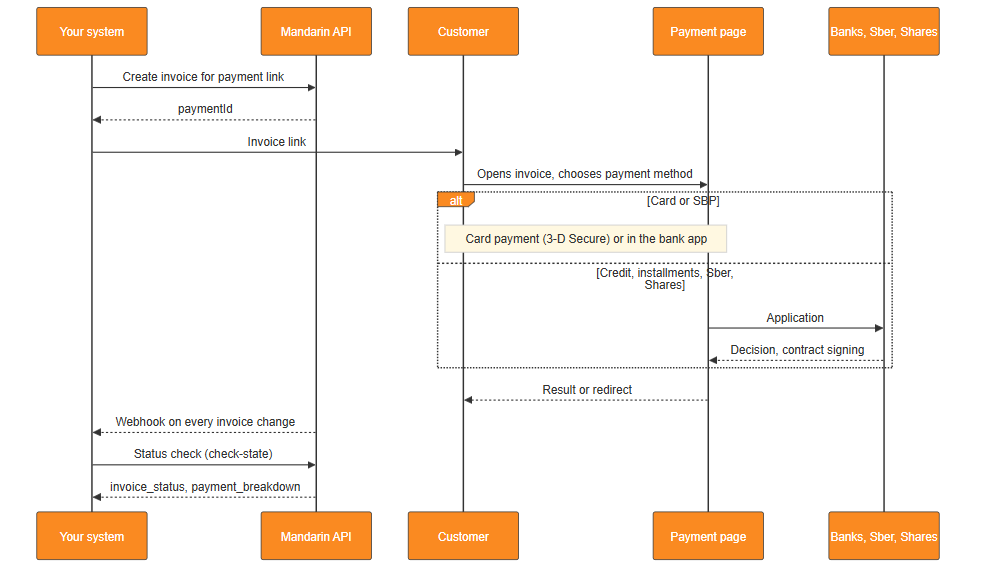
- Payment link. In the personal account, you create a link — a template with the page design, payment methods, installment terms, and receipt settings.
- Invoice. An invoice for a specific customer and amount is created from the link: manually in the personal account, automatically when the customer follows the link, or with an API request.
- Payment page. The customer opens the invoice and chooses a method. One invoice can be paid with several operations — for example, partly by card and the remainder in installments.
- Result. Mandarin sends a webhook on every invoice change, and you can request the status via the API at any time. Funds are credited to your bank account within a period that depends on the payment method.
# What the customer sees
On the invoice page, the customer sees:
- your logo, name, and order description;
- the amount due and, for a partial payment, how much has already been paid;
- the order contents;
- tiles of the available payment methods. For installments and Dolki, the approximate monthly payment is shown right away;
- a link to your offer.
If you did not pass the email, phone, or order number and they are marked as required on the link, the page asks the customer to enter them.
After payment, the customer sees a result screen or is redirected to your redirect URL.
The page is adapted for mobile devices.
# Integration options
| Option | Development | Suitable if |
|---|---|---|
| Links and invoices in the personal account | Not required | Standard products, sales through managers. The link can be placed on your website or sent to the customer. Knowledge base guide (opens new window) |
| Ready-made modules | Not required | You work on GetCourse, Skillspace, or Tilda. Ready-made integrations |
| API | Required | Invoices need to be created automatically from your website, CRM, LMS, or your own system. Setup and authorization → API |
# Next steps
- Choose the payment methods your customers need and have them connected through your manager.
- Set up the payment link and integration.
- Create invoices via the API or in the personal account.