# Ready integrations
This section lists applications with ready-made integrations, CRM, CMS, and ERP plugins, plus setup instructions. CMS plugins are hosted on GitHub; you can download applications from the links in each section. You can work with the plugin source code in the same repository where the archive files are stored. If the plugin you need is not listed, contact Support (opens new window) — we will try to help.
PLEASE NOTE!
CMS plugins are built on API requests. To customize a plugin, see the API reference.
Want to connect an integration?
Create an account or contact us!
# Preparation for integration
Before setting up any Mandarin payment acceptance integration, obtain two parameters:
- Merchant ID — your connected project number. After registration and account approval, a project with the required functionality is created and configured for you.
- Secret key — the integration secret that grants an external system access to your Mandarin project.
Find these parameters in the Mandarin dashboard as follows.
- Go to Projects — your project appears in Live mode with status Approved.
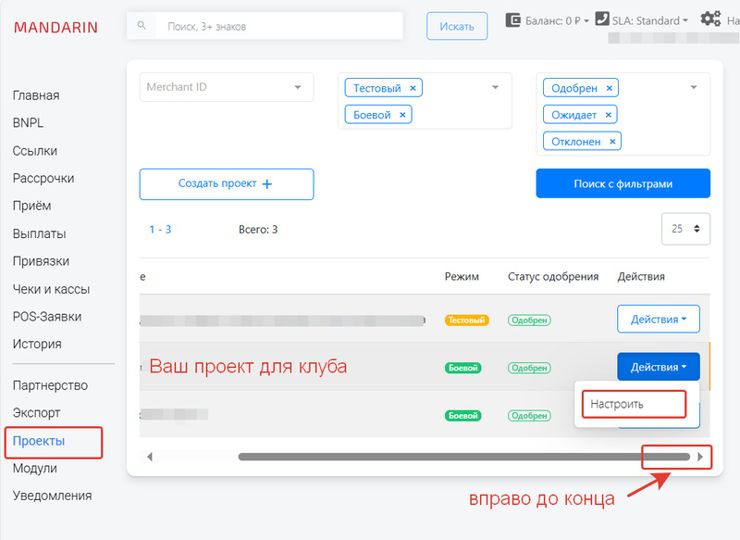
- Open the Integration tab, then Go to API Secrets management.
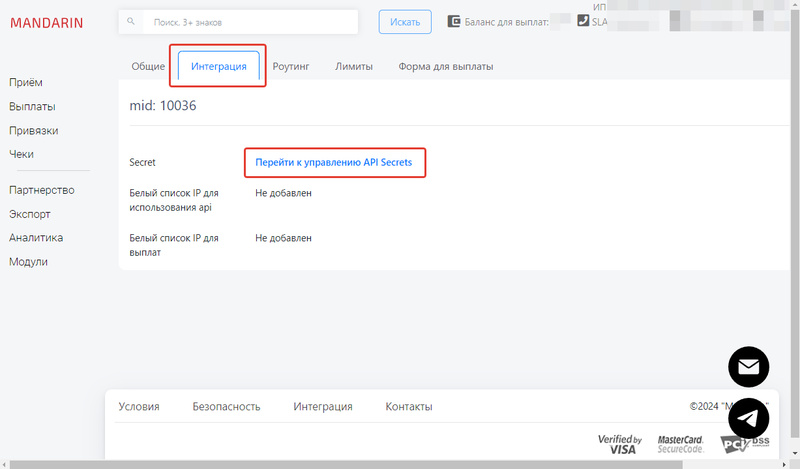
After successful authorization you will see the full list of your projects and their Secrets.
Click the required Merchant ID — the Secret edit/view window opens.
To refresh the project Secret, click Update Secret — the value is updated and copied to the clipboard.
Copy both values — MerchantID and Secret — to a separate file before configuring the integration.
# Cash register parameters
If you use Mandarin’s free agency cash register, the only available tax system is General (GTS). This does not affect the tax your company pays, but if you specify another system, receipts will not be created.
# Integrations by industry
# Educational platforms
# GetCourse
A popular Russian cloud platform for launching, promoting, and running online courses, schools, and trainings.
Key features
- Learning: lessons, video materials, webinars, and homework review.
- Sales and CRM: payments, customer base, orders, and analytics.
- Automation: funnels, email campaigns, and SMS notifications.
# Integration steps
# 1. Obtaining Mandarin data
After your account is activated and services are enabled, universal payment links are available in Links in the dashboard (opens new window).
Choose the link with the service you need for integration (Installment, Credit, Split payments), open its settings via Actions → View details.
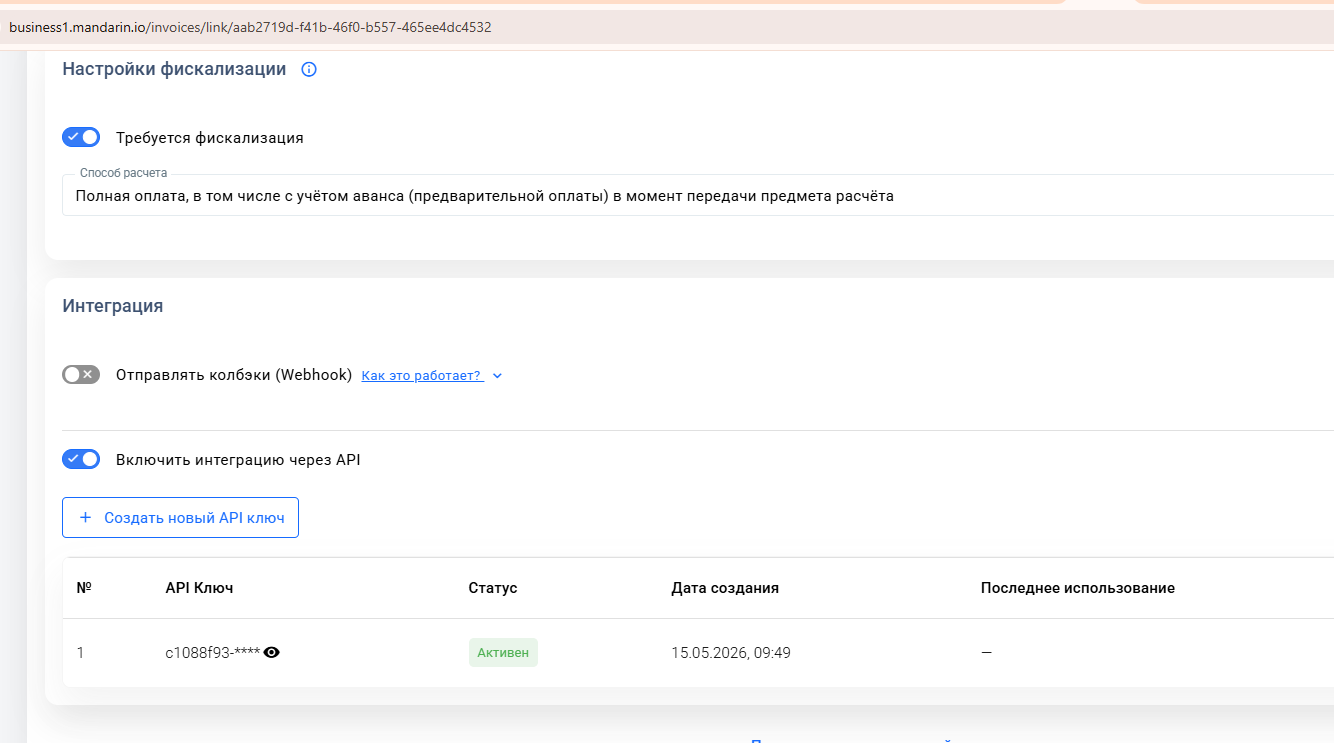
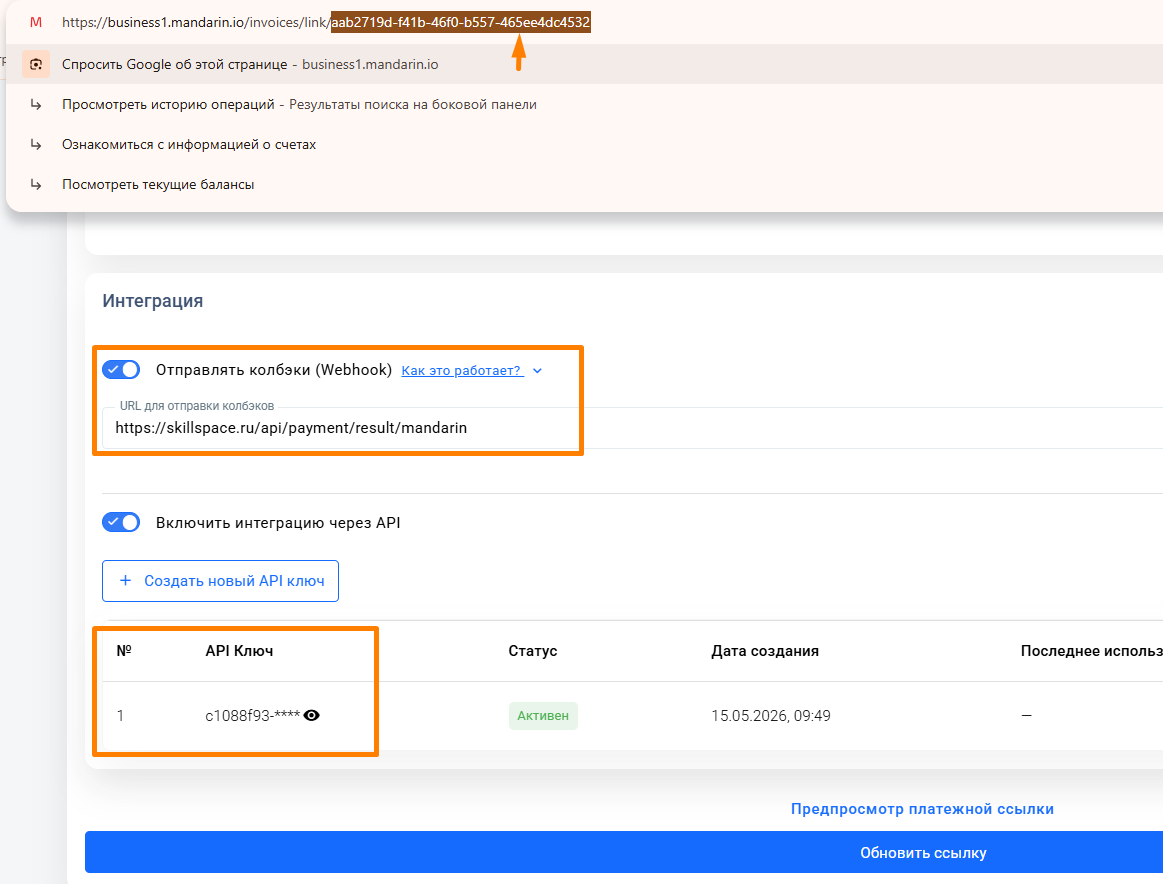
In link settings, scroll to the Integration block at the bottom. Enable Enable API integration and Create new API key.
You may name the key, for example: Getcourse integration.
The link ID is in the browser URL while settings are open: https://business1.mandarin.io/invoices/link/{link_id}
Save the API key and link ID to a separate file.
# 2. Obtaining Getcourse data
From your Getcourse account, save the following to a separate file:
getCourseBaseUrl— account base URL (e.g.https://mandarin.getcourse.ru).
Important!
The URL must end with .getcourse.ru — use the account base URL only. If you use a landing page URL, the integration will break when the landing is updated.
getCourseToken— Getcourse API token.
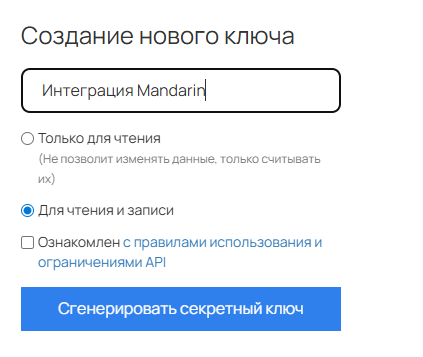
To obtain the token, open https://*.getcourse.ru/saas/account/api (replace * with your account name). Under “Create a new key”, enter a key name, check “For reading and writing”, click “Generate secret key”, copy and save it.
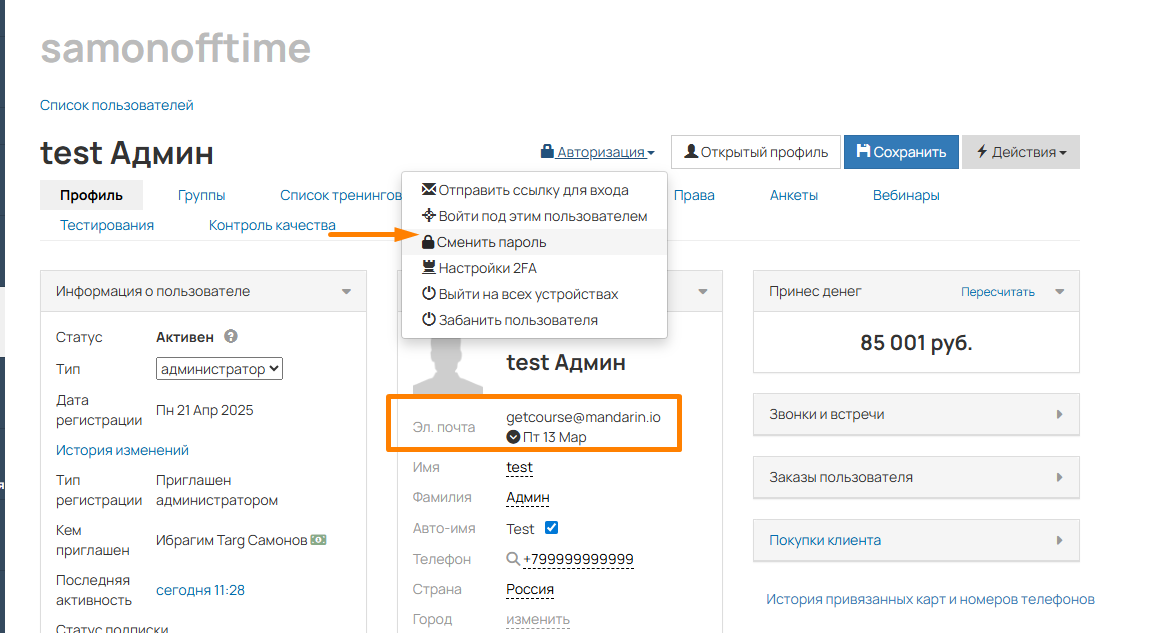
- Create an admin user for getcourse@mandarin.io and save the password (set it via Change password after adding the user). This is required for the script that syncs order/payment statuses and for editing the system payment page.
# 3. Submitting the request
After collecting all data above, contact your Mandarin manager, technical account manager, or technical support (opens new window) (website form or Telegram) and attach all saved credentials.
# Skillspace
A Russian educational platform for creating, launching, and selling online courses.
The service works as an LMS (Learning Management System) — a learning management system that helps you organize remote lessons, run tests, and track student progress in one place.
Key features
- Content creation: upload video lessons and text, create tests and exams.
- Sales: accept payments from students with a built-in cloud online cash register.
- Management: track course completion statistics and review homework.
# Integration steps
# 1. Obtaining Mandarin data
After your account is activated and services are enabled, universal payment links are available in Links in the dashboard (opens new window).
Choose the link with the service you need for integration (Installment, Credit, Split payments), open its settings via Actions → View details.
In link settings, scroll to the Integration block at the bottom. Enable Enable API integration and Create new API key.
You may name the key, for example: Skillspace integration.
The link ID is in the browser URL while settings are open: https://business1.mandarin.io/invoices/link/{link_id}
Save the API key and link ID to a separate file.
Also enable Send callbacks (Webhook) and set the URL to https://skillspace.ru/api/payment/result/mandarin. This lets Skillspace receive payment notifications and grant course access to the student.
# 2. Configuring Skillspace
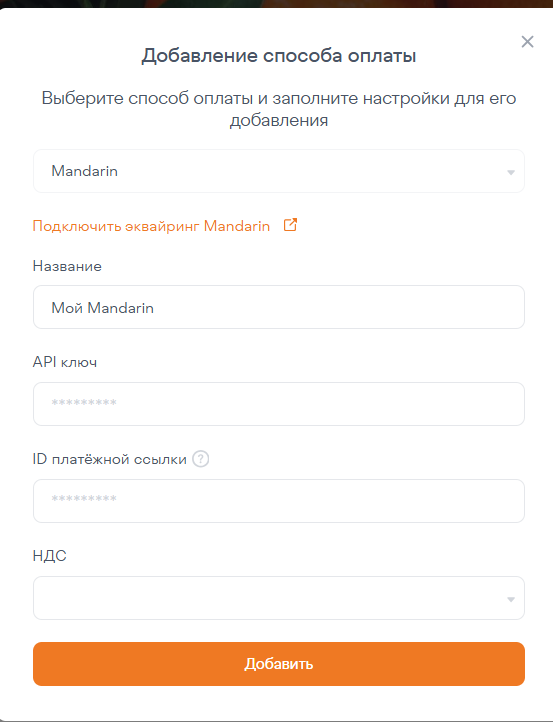
To configure the integration, open your Skillspace account, go to School settings → Payment methods, and click Add another payment method.
In the form, select Mandarin from the list. Add the API key and link ID saved in step 1, set VAT if needed, and click Save.
Done — the integration is configured! You can now add Mandarin as a payment method to any course.
# 3. Important notes
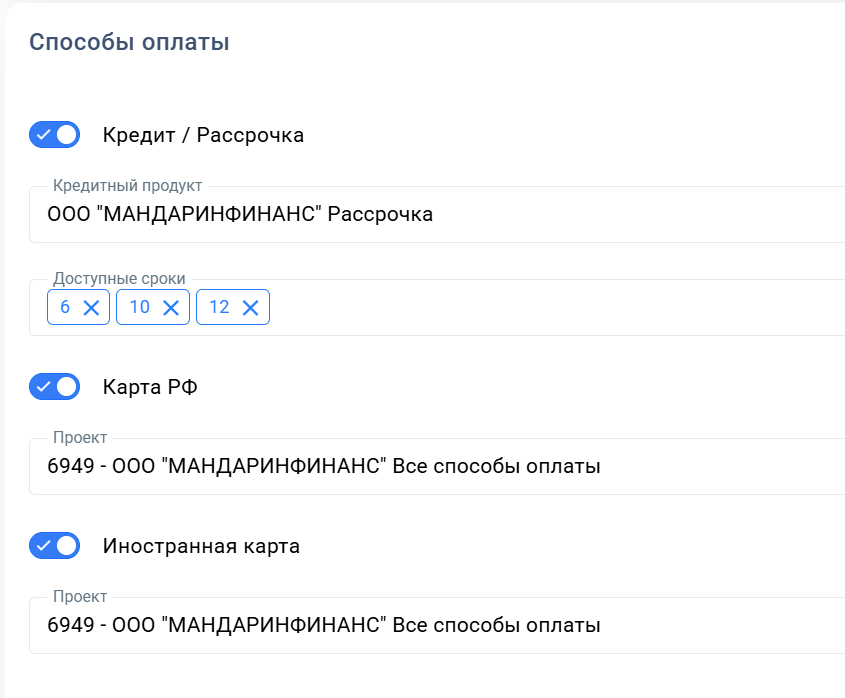
- The integration is tied directly to the payment link where you configured the API key. Any change to that link affects the integration. This lets you manage the integration from the Mandarin dashboard without developers — add payment methods, change available terms, set an offer link — and changes apply to the integration immediately.
- Multiple services can be active on the integration at once — Payment acceptance, SBP, Cross-border acceptance, Installments/credit, Split payments.
# Mangustin.Online
A Russian platform for creating and running private online clubs, subscription communities, and educational projects.
Key features
- Knowledge base: publish lessons, videos, articles, and homework with scheduling and review.
- Communication: topic chats, discussions, and private messages between members.
- Events calendar: organize online and offline meetings with announcements and automatic reminders.
- Monetization: configure recurring autopayments and manage access by membership (for sole proprietors and self-employed).
# Integration steps
- Open your community on Mangustin.Online.
- Go to MANAGEMENT → Administration → Connectors and click +Connect.
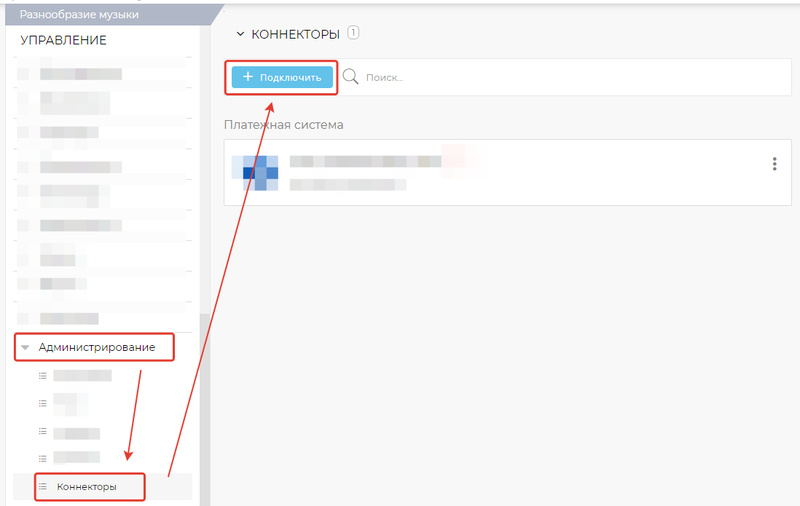
- Select connector type Payment system and provider Mandarin. The connector creation form opens.
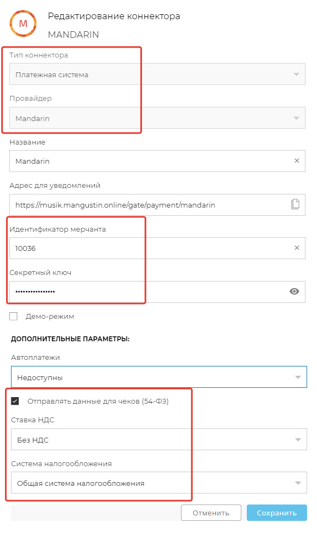
- In the dialog, set the following:
- Name — Mandarin
- Notification URL — do not change
- Merchant ID (mid) — the ID from your Mandarin project
- Secret key (secret) — the secret key from your Mandarin project
- Check Send receipt data (54-FZ) and set additional parameters — VAT rate and tax system.
NOTE
If you do not have your own cash register, check Send receipt data (54-FZ) and set General tax system in Tax system. Otherwise receipts will not be sent. Receipt sending via Mandarin is free.
- Click Save.
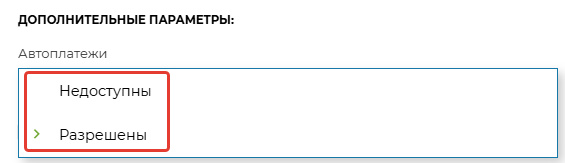
In Additional parameters, choose the autopayment option:
- Unavailable — autopayments are disabled; the “allow autopayments” checkbox is not shown at checkout.
- Allowed — the “allow autopayments” checkbox is shown at checkout but is off by default.
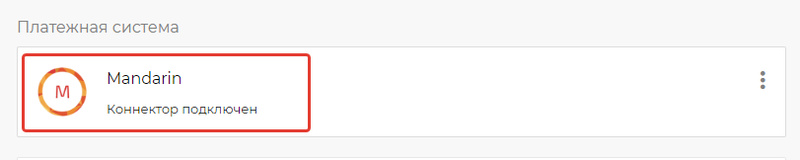
If everything is configured correctly, Connectors in your community will show the Mandarin payment connector with status Connector connected.
Setup is complete. You can accept payments.
Previously created offers now include order-creation links. Use them in payment buttons on your sites or pages.
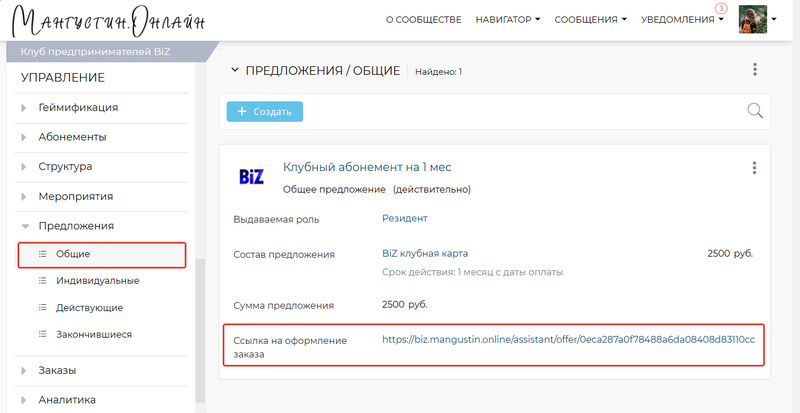
To test payment and membership issuance, create an offer for a small amount (for example, 5 rubles) and pay with your bank card.
# Medicine
# DentalPRO
A cloud medical information system (MIS) and automation software for dental clinics.
Key features
- Cloud operation: the system runs in the browser without installing on a separate server. Windows, Mac, Linux, iOS, and Android are supported.
- Clinic management: finances, materials accounting, scheduling, and staff management.
- For doctors: electronic medical records (including voice input), interactive dental chart, and treatment plans.
- Mobility: managers can access key business metrics via smartphone.
DentalPRO integration is configured by technical support staff upon request. After the required settings are applied, you can start using the service.
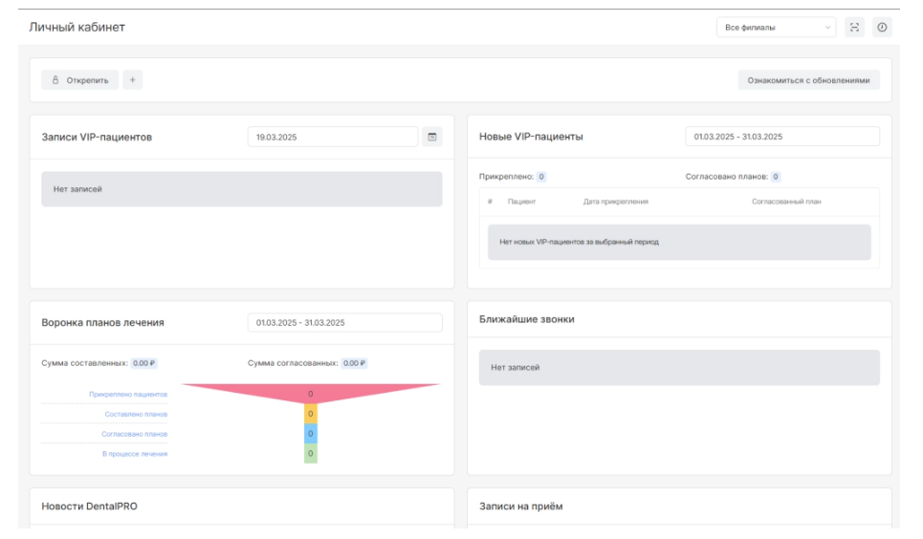
Open the personal account. When you enter this module, a list of available widgets appears (depending on the user group). Find the Mandarin widget.
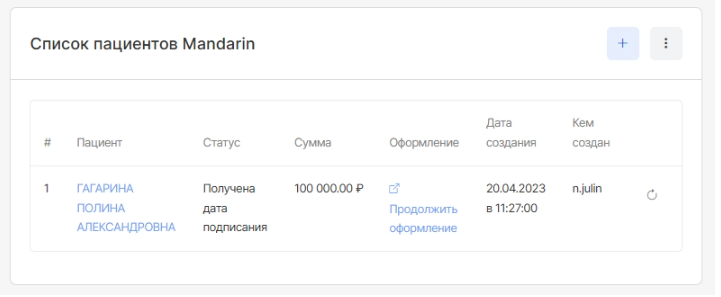
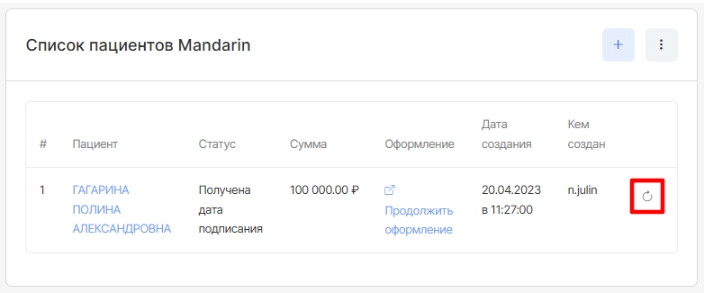
The widget shows: application sequence number, patient full name, application status, loan amount, continuation link, creation date, and who created the application.
Three actions are available:
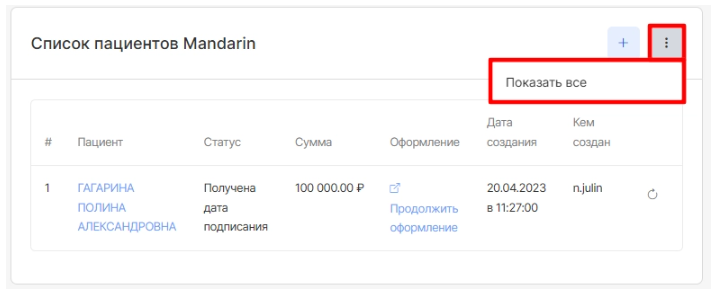
Show all — opens a page with all patients who applied for a treatment loan.
Refresh — updates application statuses for the last ten patients who wanted a treatment loan.
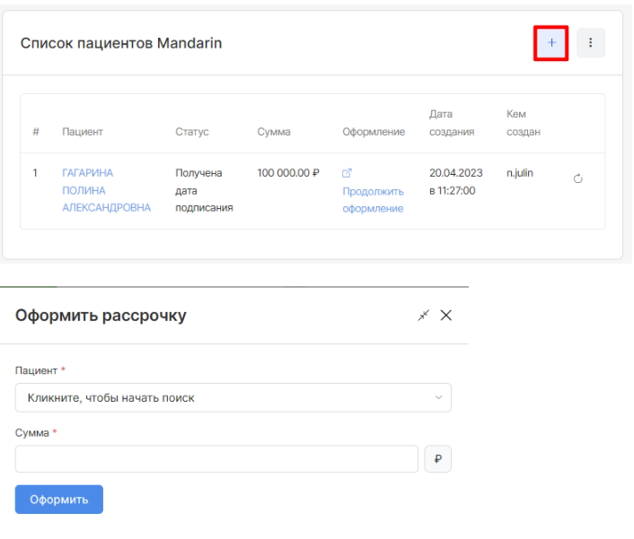
Create application — opens a loan application form where you enter the patient full name and loan amount.
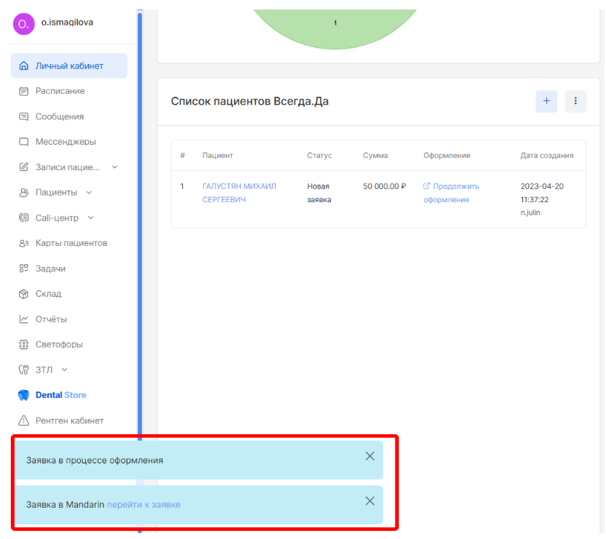
After you enter the patient full name and amount and save, a new browser window opens to complete patient data in Mandarin. After submitting the application, DentalPRO MIS shows a notification about the application status in Mandarin. Click Go to application on the notification to continue.
# Omnichannel platforms
# Salebot
Salebot is a multifunctional platform for automating sales, marketing, and customer communication via chatbots.
Key features
- Chatbot builder: create bots without programming skills for Telegram, WhatsApp, VKontakte, Avito, and other channels.
- AI assistants: text generation, customer Q&A, and funnel building.
- Unified inbox (CRM): handle incoming messages from different messengers in one interface with conversation history.
- Site builder: simple landing pages and online stores with online payment acceptance.
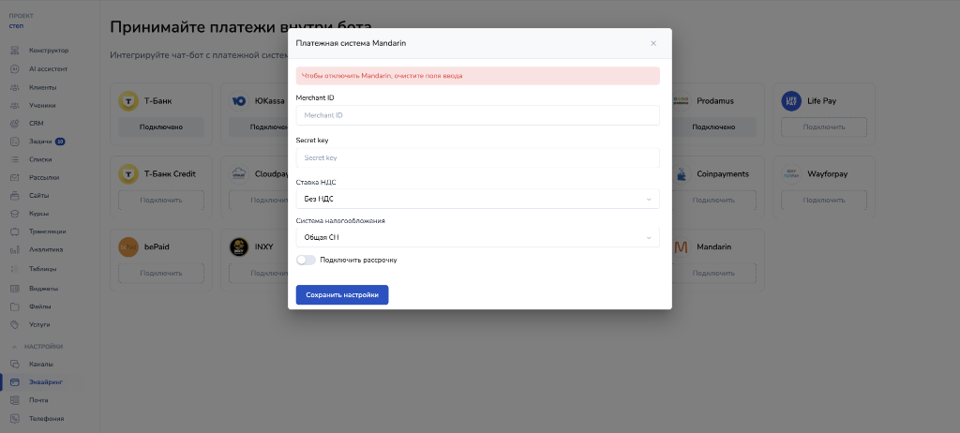
Integration with the Mandarin payment system is available only on the Infobiz plan.
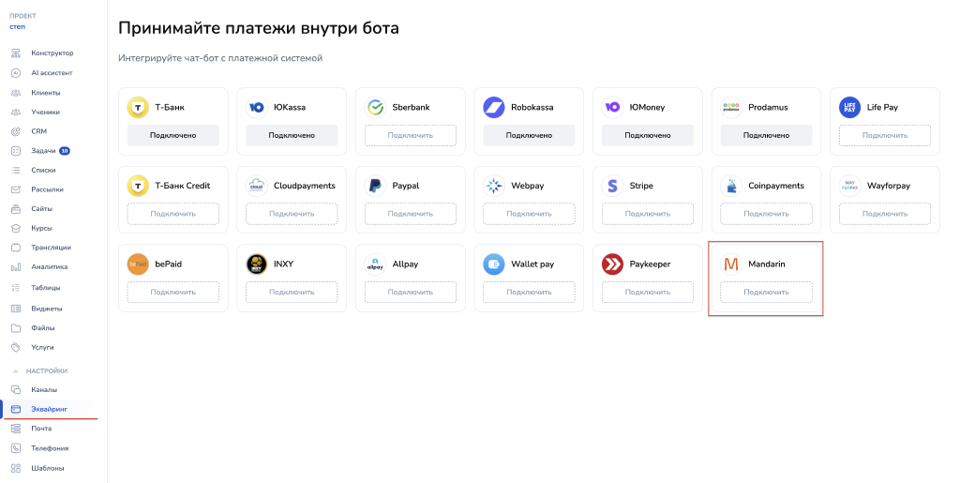
To configure the integration, go to Acquiring → Mandarin and fill in the form in Salebot.pro:
# How to build a payment link
get_mandarin_payment_url(amount, email, phone, products_for_receipt)
- amount — payment amount in rubles;
- email — customer email;
- phone — customer phone. Optional, but required for MCC 4814 and MCC 6050. Contact your manager or technical support to confirm your MCC;
- products_for_receipt — receipt parameters. Optional.
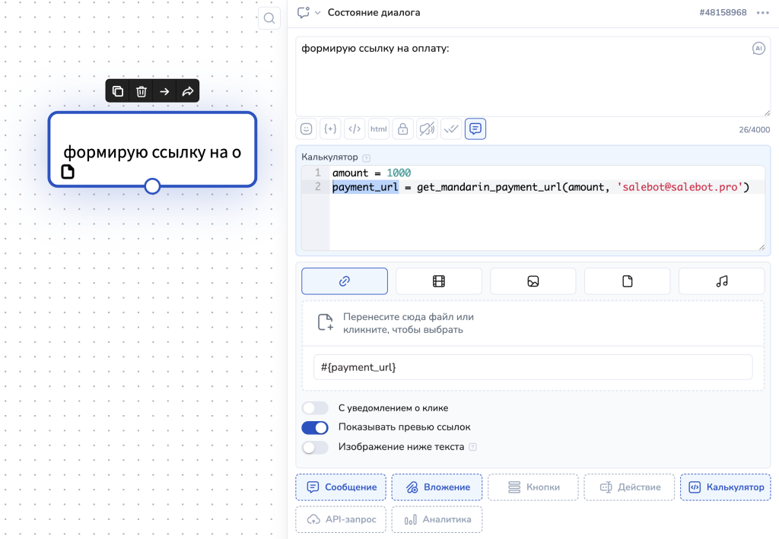
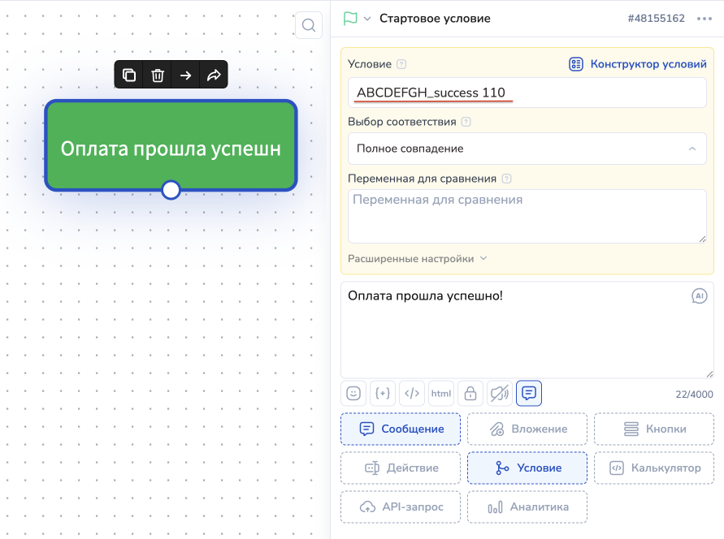
After payment you receive a callback like ABCDEFGH_success 110, where:
ABCDEFGH— first 8 characters of yoursecret_key;success— payment result (success— successful,fail— failed);110— payment amount.
You can specify the callback in a Start condition block:
Or in a Non-state with condition block:
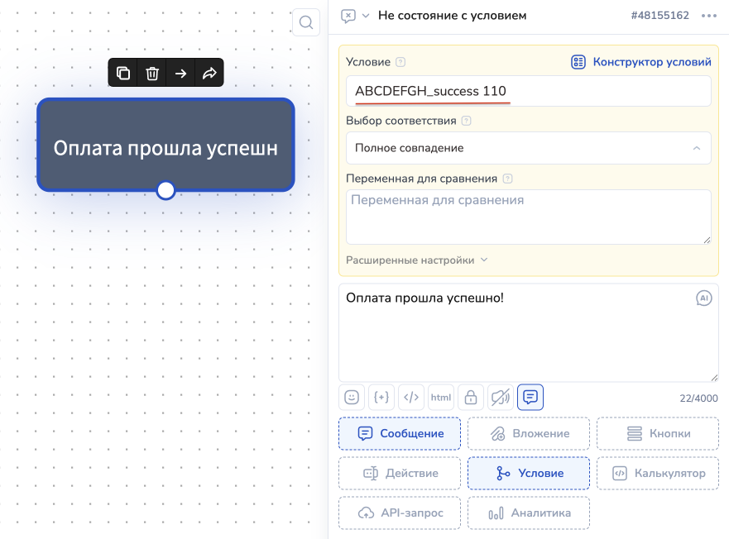
If you do not want to pull the customer out of the main chatbot flow, use a Non-state with condition block — customers cannot navigate to this block, so after payment they stay in the main funnel and still receive a successful payment notification.
If you need to continue the funnel after a successful payment, use a Start condition block — the customer moves from the payment block into it, and you can continue the funnel from there.
# E-commerce
# amoCRM
# Installing the widget in amoCRM
You can install the widget in two ways:
# 1. Installation via amoMarket
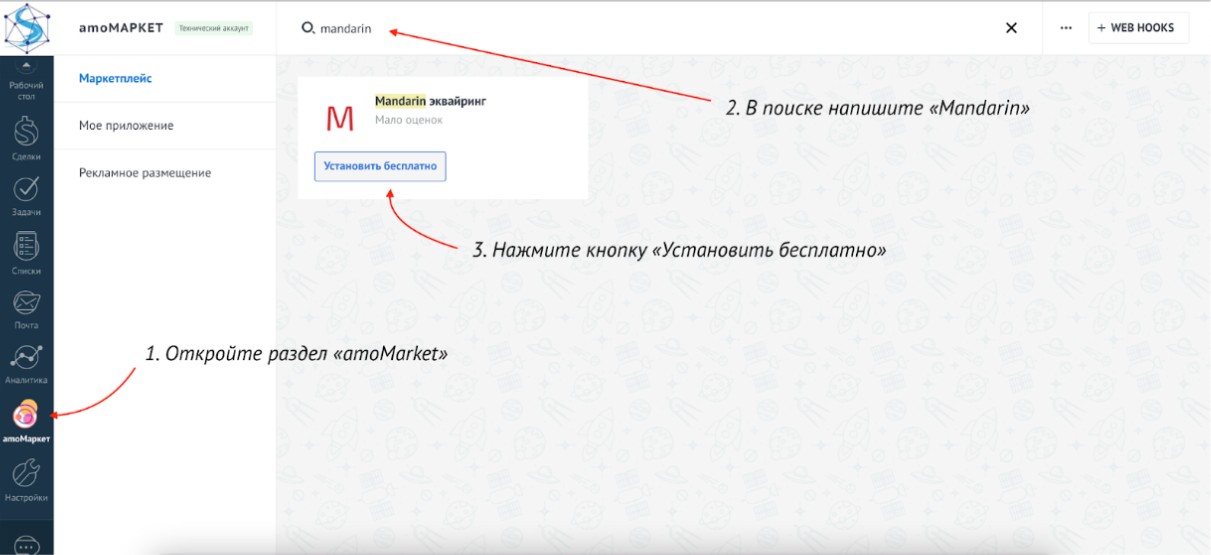
Open the “amoMarket” section, search for “Mandarin”, and click “Install for free” on the widget card.
Check the box as shown in the screenshot and click “Install”.
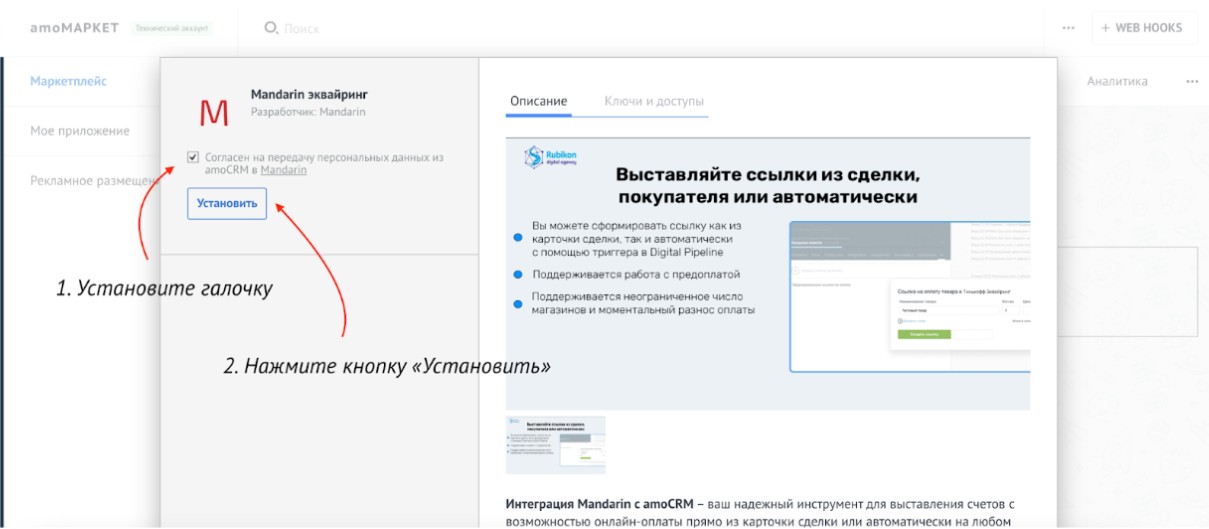
Done! The widget is installed and you can configure it.
# 2. Installation via link
To install the widget, open the Link (opens new window) Select the amoCRM account where you want to install the widget and click “Allow”
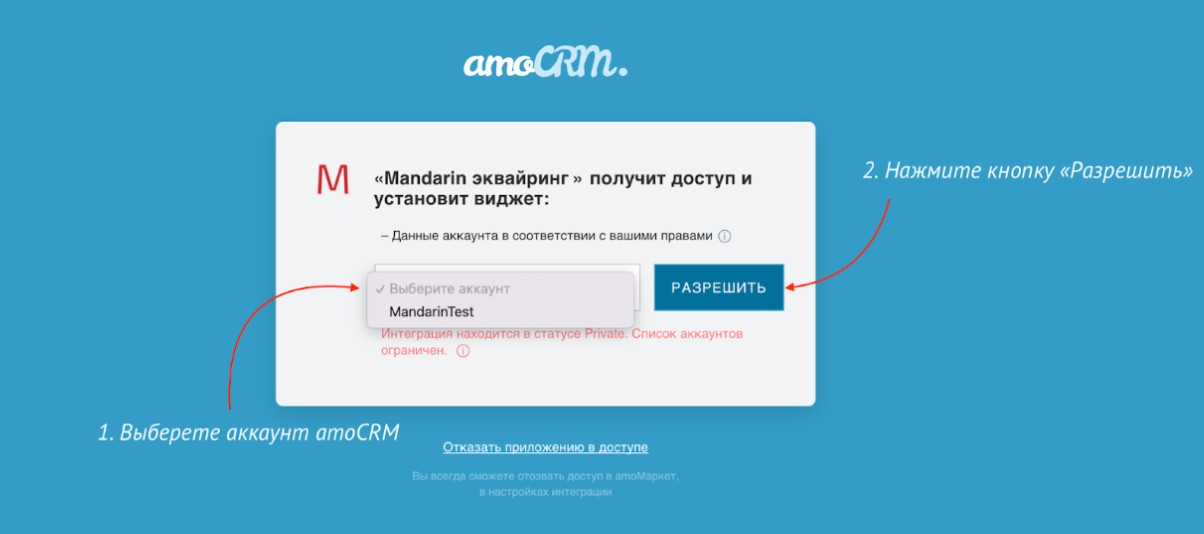
After you click the button, the widget is installed automatically in your account and is ready to configure.
# Initial widget setup
# Connecting and configuring stores
To connect a store, open “Settings” in the widget, then open “Stores”
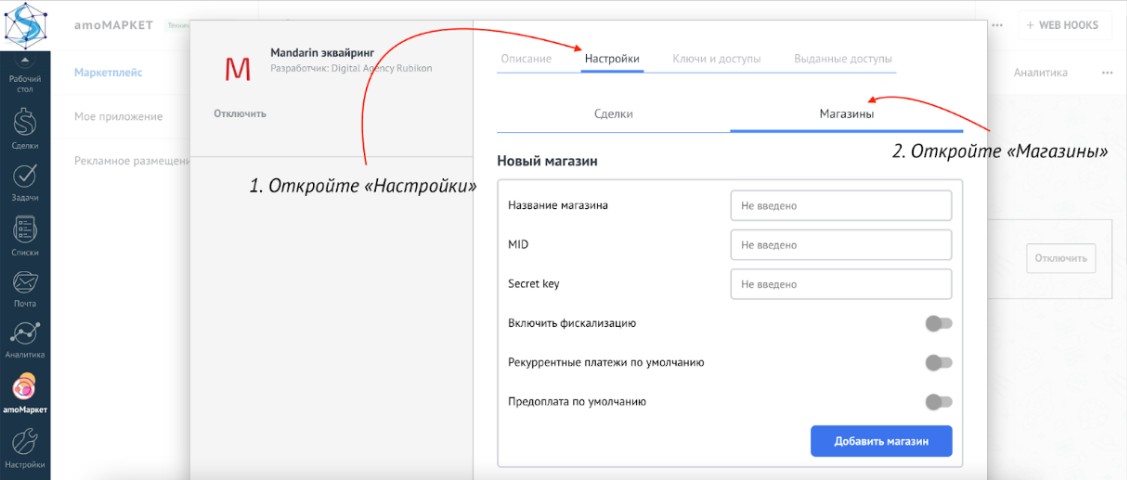
The widget has no limit on the number of connected stores.
To add a new store:
- Enter any value in “Store name”
- Enter the “MID” parameter you received from Mandarin technical support
- Enter the “Secret Key” parameter you received from Mandarin technical support
To finish, click “Add store”.
Important!
Click “Save” to keep your settings. Otherwise, all entered data is lost when you leave the widget settings.
When creating or editing store settings, you can also:
Enable fiscalization Check the box next to “Enable fiscalization” and fill in:
1.1 Tax system
1.2 VAT rate
1.3 Payment method
1.4 Payment subject
After you fill in all fields, acquiring will generate receipts and send them to the customer and to the tax authority (if you have an online cash register configured in the Mandarin dashboard)Enable one optional feature (only one can be active at a time):
2.1 Recurring payments by default When this checkbox is enabled, the payment link dialog enables recurring payments by default; you can turn it off when creating a link. This setting only controls the default.
2.2 Prepayment by default When this checkbox is enabled, the payment link dialog sets the “Prepayment” option by default; you can turn it off when creating a link. This setting only controls the default.
# Field mapping setup
To configure mapping, open “Settings” in the widget, click “Deals”, then click “Field settings”
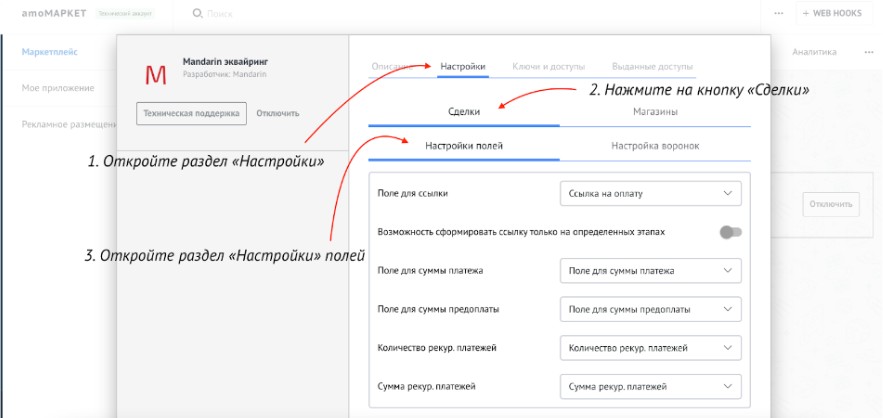
The widget can populate the deal card with:
Payment link The most recently generated payment link for this deal
Payment amount Total amount paid by the customer
Prepayment amount Total prepayments by the customer (when the payment link is created with “Prepayment” enabled)
Number of recurring payments Total planned number of recurring payments
Recurring payment amount Total planned recurring payment amount
To map fields, first create the corresponding fields in the deal card. If you already changed widget settings, click “Save” so your data is not lost.
If the required deal fields already exist, select them from the available fields list shown to the right of each parameter.
Important!
Click “Save” to keep your settings. Otherwise, all entered data is lost when you leave the widget settings.
# Automatic deal status change on payment
When payment via a generated link succeeds, the widget can change the deal status for full payment and for prepayment.
To configure this, open “Settings” in the widget, click “Deals”, then “Pipeline settings”
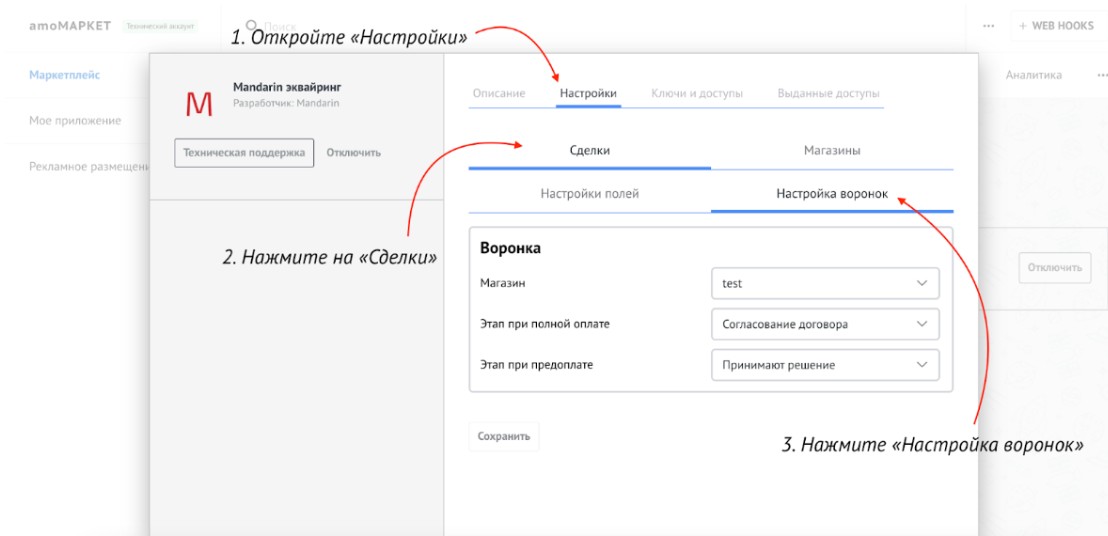
In this section you can set:
Default store Select the store that should be selected by default in the payment link dialog for this pipeline
Stage on full payment Select the stage deals should move to on full payment
Stage on prepayment Select the stage deals should move to on prepayment
Important!
Click “Save” to keep your settings. Otherwise, all entered data is lost when you leave the widget settings.
# Using the widget
# Creating a payment link
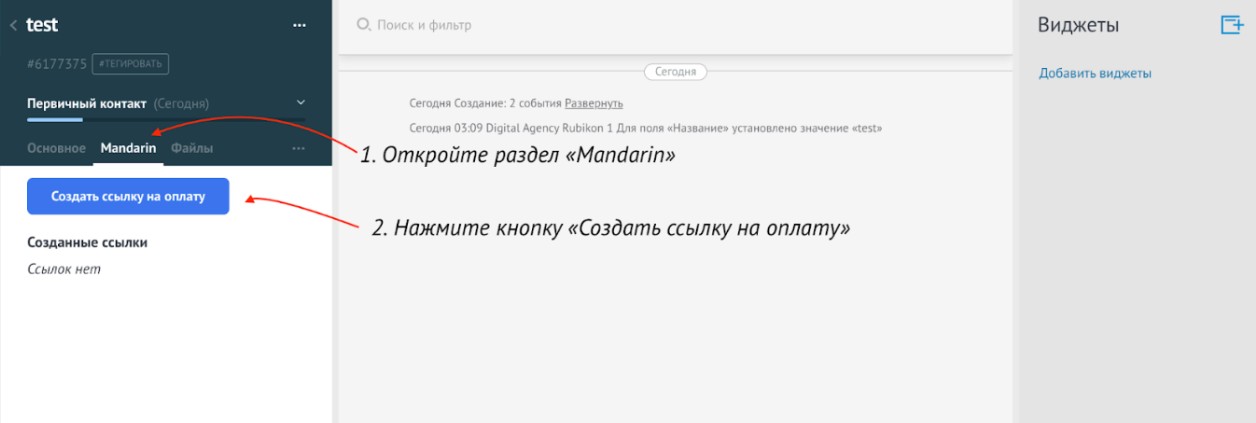
To create a payment link, open the amoCRM deal where you want the link created, select the “Mandarin” section, and click “Create payment link”
# Adding a product in the payment link dialog
Next, add a product in the payment link dialog. Click “Add product” and select a product from the list The list shows products you previously added to “Products” in amoCRM
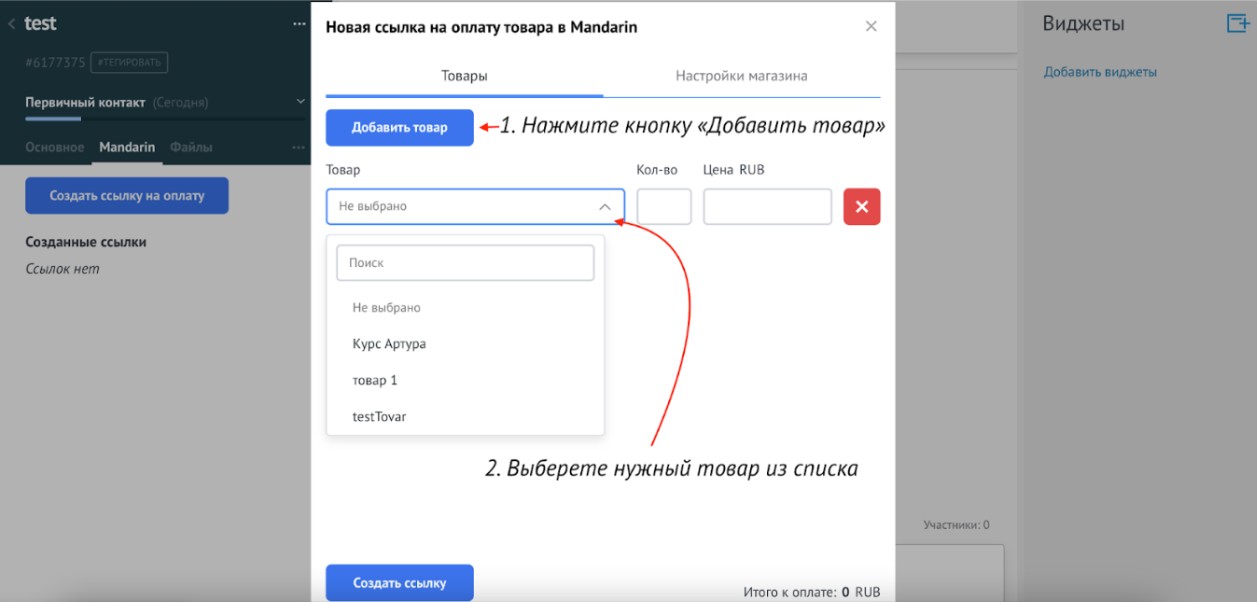
After adding a product, price and quantity are filled in automatically and can be edited.
# Configuring the generated payment link
In “Store settings” you can set:
Store This shows previously added stores and defaults to the store selected in pipeline settings
Enable recurring payments When enabled, the link supports recurring charges for the number of payments you specify in “Number of payments”
Enable prepayment If you use prepayments, enabling this checkbox lets you set “Prepayment amount”. The link first shows the prepayment amount; after it is paid, the customer can pay the remainder via the same link.
After entering all data, click “Create link”. If there are no errors, a link is generated with your settings. When the link is created:
- The link appears in “Created links”
- The latest link is automatically written to the deal field configured in settings
# Working with the generated payment link
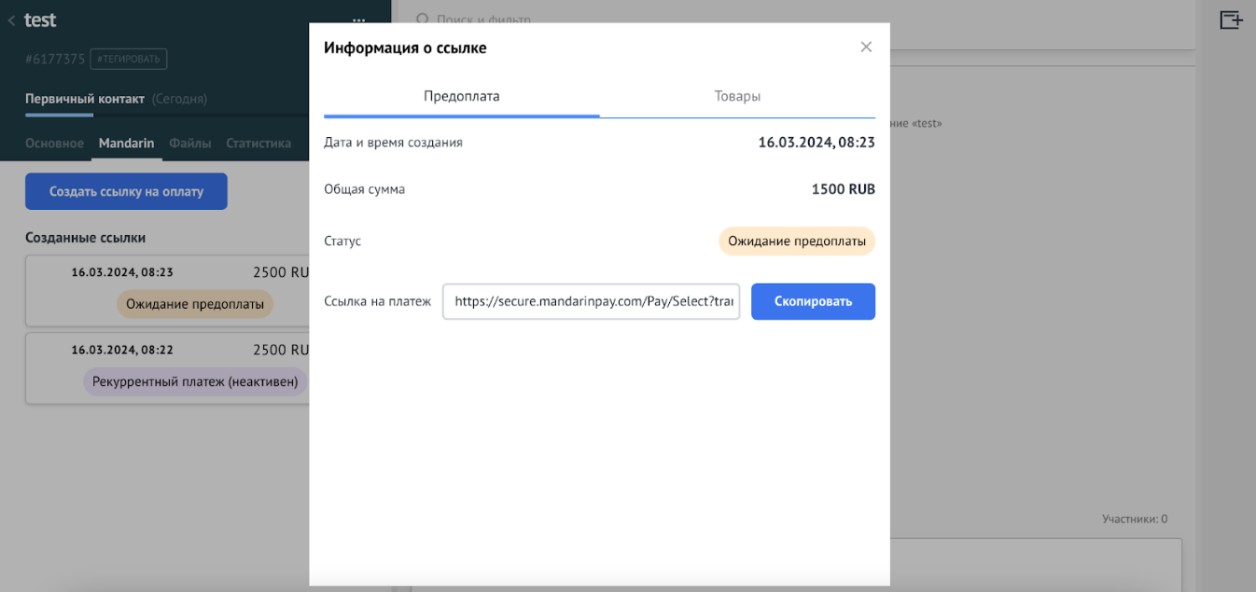
The link appears in “Created links”. Click the link block anytime to view details
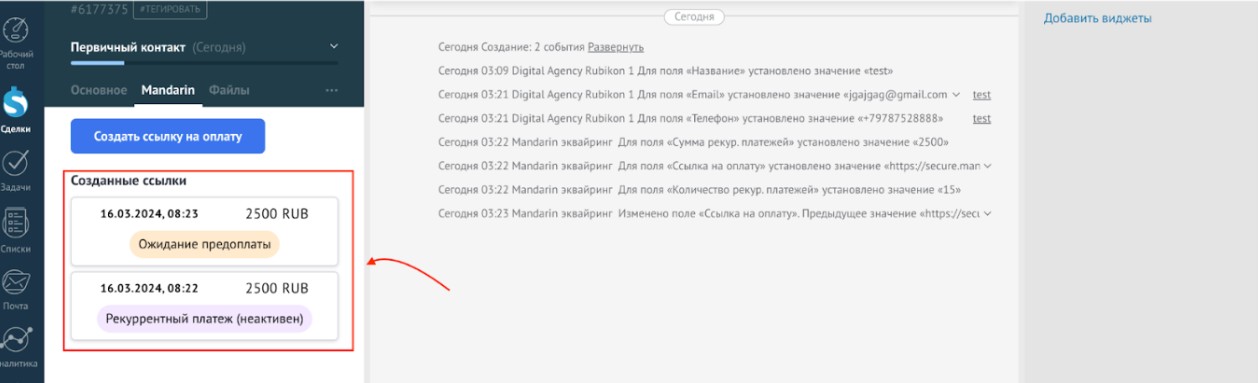
In this block you can copy the link to send it to the customer
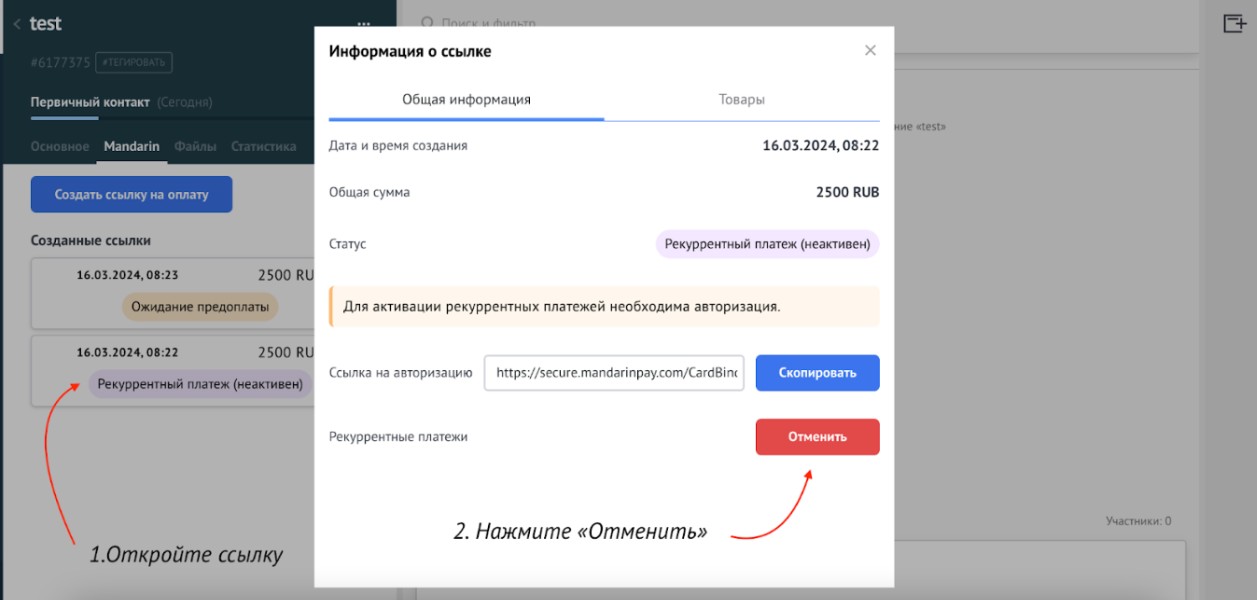
# Links with recurring payments
After the first payment via the link, the customer agrees to all subsequent recurring charges. Charges occur automatically. To cancel a recurring payment, open the deal where the link was created, click the link block marked “Recurring payment”, then click “Cancel”
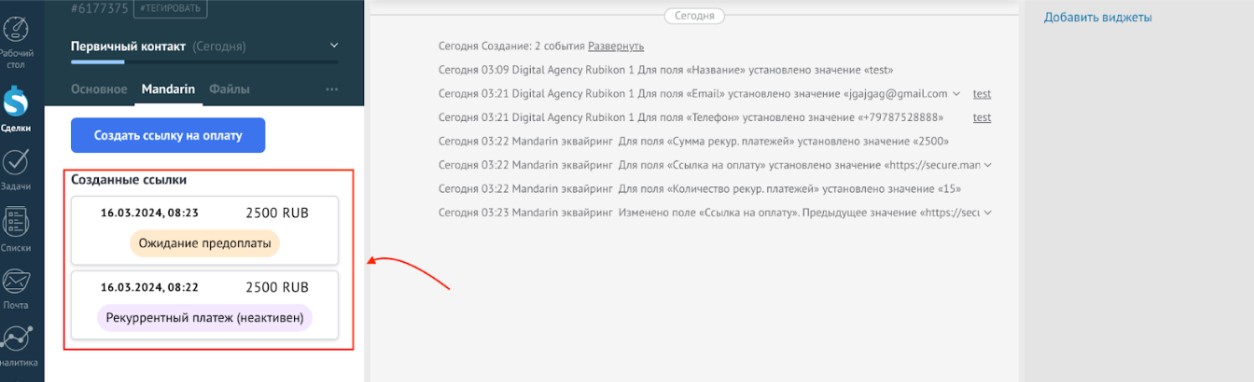
# Automatic payment allocation
After payment, the widget automatically updates the deal status to the stage selected in “Pipeline settings” in the widget
With “Prepayment” enabled when creating the link, the deal first moves to the prepayment stage, then to the full payment stage after the remainder is paid
When you open the deal, “Created links” shows the current payment status for each link
# Bitrix24
- Payment plugin (opens new window).
- Installment plugin (opens new window).
- Instructions (opens new window).
Each plugin registers its own payment system. If both are installed, the customer can choose Installment or Card payment.
# Getting started
Install the plugin using the links above.
Before configuring the Mandarin payment module, register a dashboard account on the platform (opens new window); account creation instructions are here (opens new window). After registration, open your project page in the Mandarin dashboard and set the callback URL to https://mandarinio.bkvsoft.com/mandarin/app/Classes/UrlStarter.php?type=callback (without quotes).

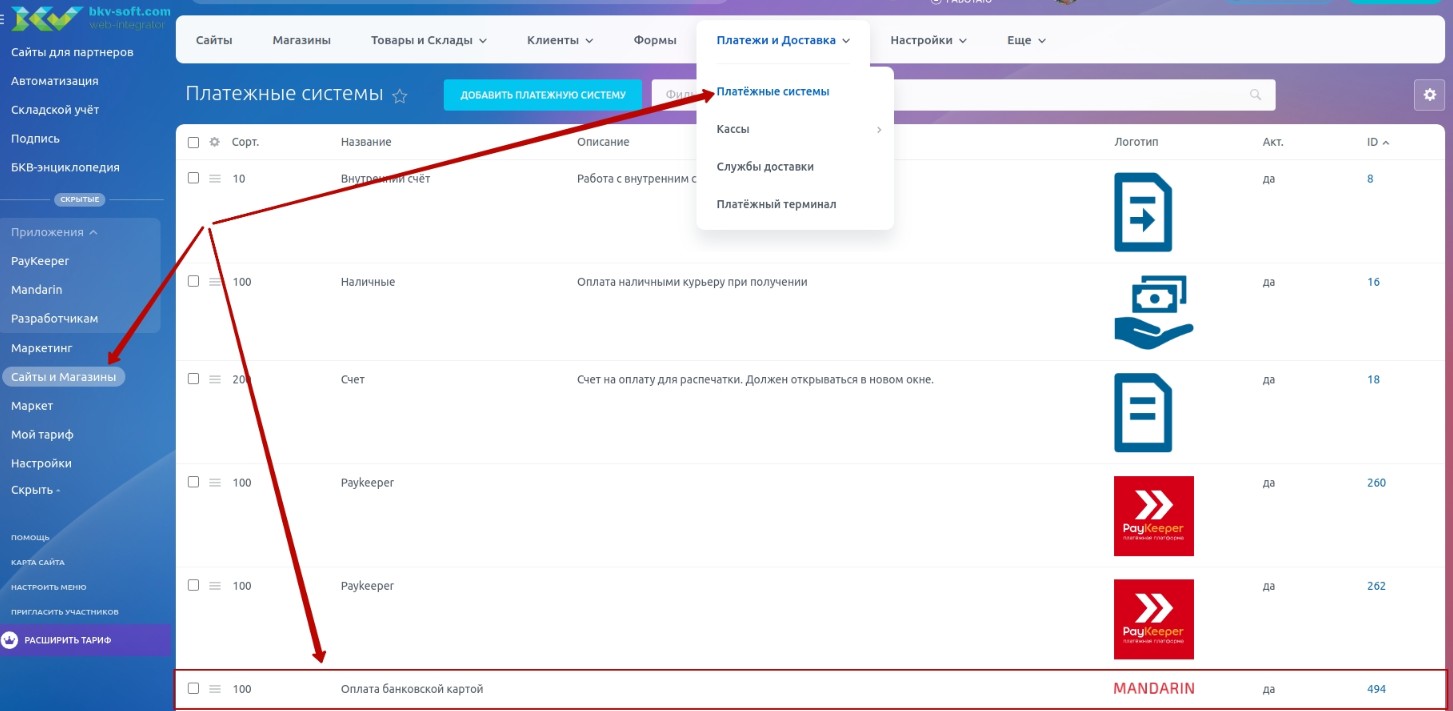
To configure the "Mandarin" payment module, go to "Sites and stores" in the CRM portal left menu. On the page that opens, select "Payment systems" from the "Payments and delivery" dropdown in the top menu (Fig. 1). If the module installed successfully, "Mandarin" appears in the list for individual payers. Double-click the payment system name (or choose "Edit" from the context menu) to change its parameters.
# Configuring the payment system for card payments
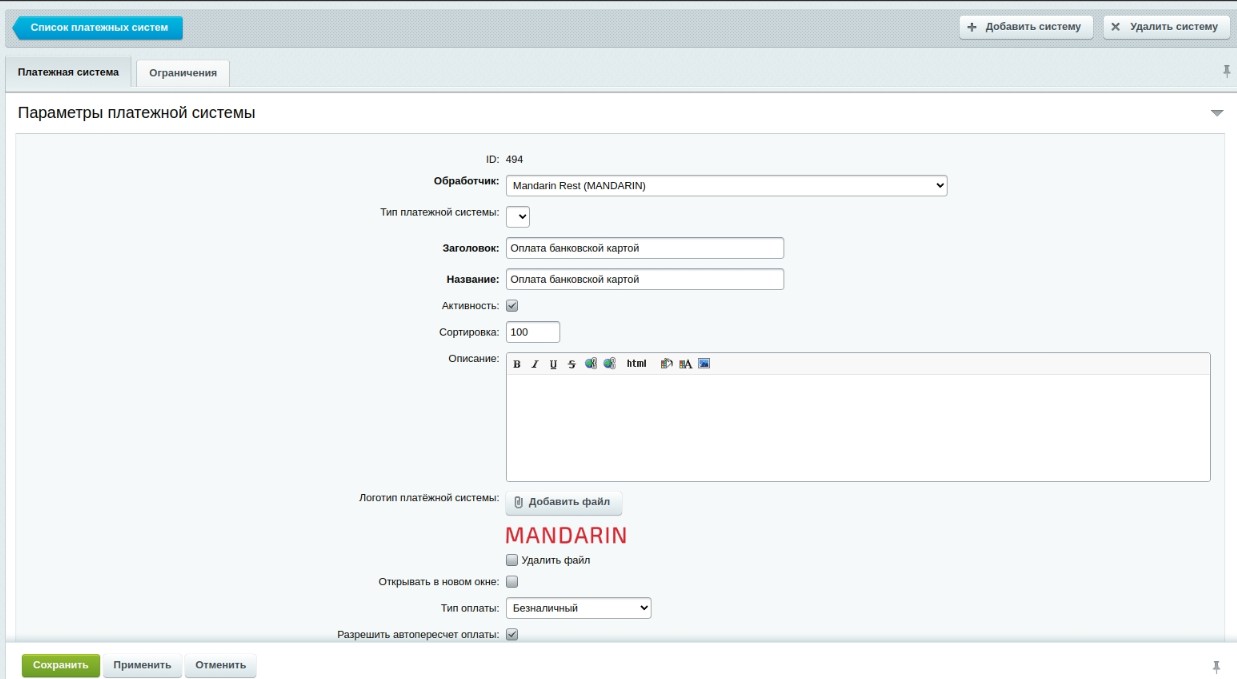
On the "Payment system" tab, fill in the fields as follows (Fig. 2):
- Handler: Mandarin Rest (MANDARIN)
- Payment system type: leave empty by default
- Title: Bank card payment
- Name: Bank card payment
- Active: check the box
- Sort order: set as desired
Description:
- Payment system logo: uploaded logo
- Open in new window: leave default
- Payment type: Non-cash
- Allow automatic payment recalculation: leave default
- Allow receipt printing: leave default
- Encoding: leave default
- Code: leave default
- External code: MANDARIN
# Configuring the payment handler for payments
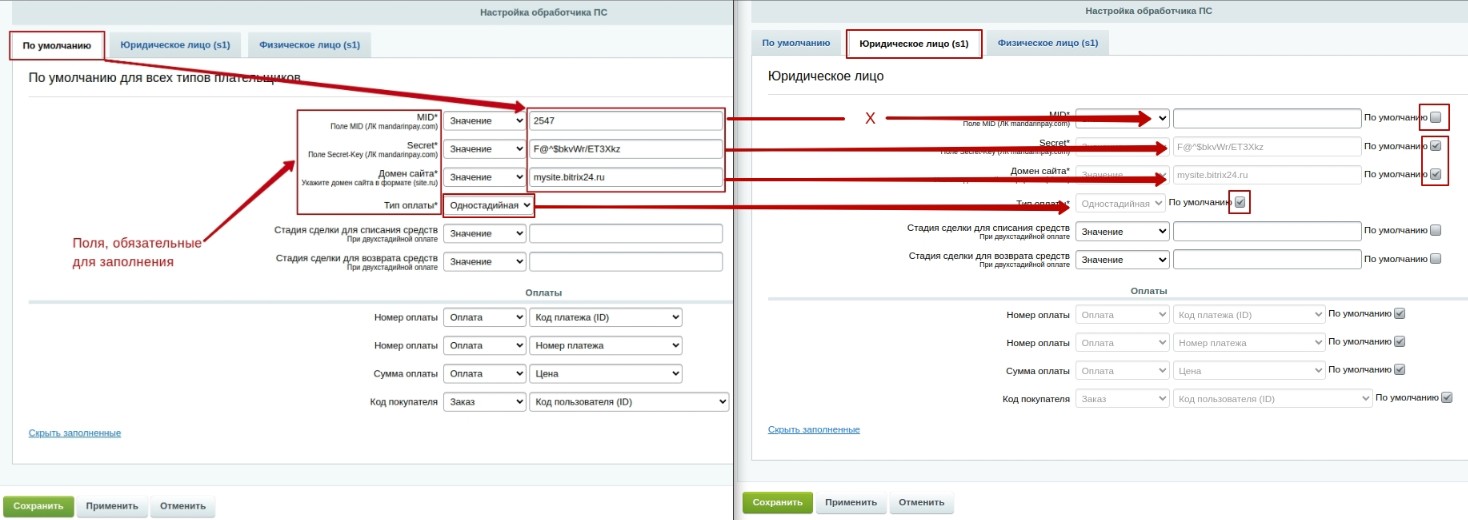
In the "Payment handler settings" section, expand all fields by clicking "Show all". To configure Mandarin, fill in the "Individual (s1)" tab. If a field on the "Individual (s1)" tab has "Default" checked, its value is taken from the corresponding field on the "Default" tab of the current payment system. Otherwise, the value set directly on this tab is used.
MID* (required) — value from the MID field in the mandarinpay.com dashboard
Secret* (required) — value from the Secret-Key field in the mandarinpay.com dashboard
Site domain* (required) — site domain in the format site.ru without https://
Payment type* (required) — One-stage or Two-stage, as selected
Deal stage for capture — stage name; when the deal moves to this stage, frozen funds are captured if payment type is "Two-stage". WARNING! Capture applies to ALL active payments for this deal (created with two-stage payment).
Deal stage for refund — stage name; when the deal moves to this stage, frozen funds are refunded if payment type is "Two-stage". WARNING! Refund applies to ALL payments for this deal (created with two-stage payment) where capture has not occurred.
Leave the "Payments" section fields at their default values.
# Restrictions
On the "Restrictions" tab for Mandarin (Individual), payer type "Individual" is set automatically.
# Configuring the payment system for installment credit
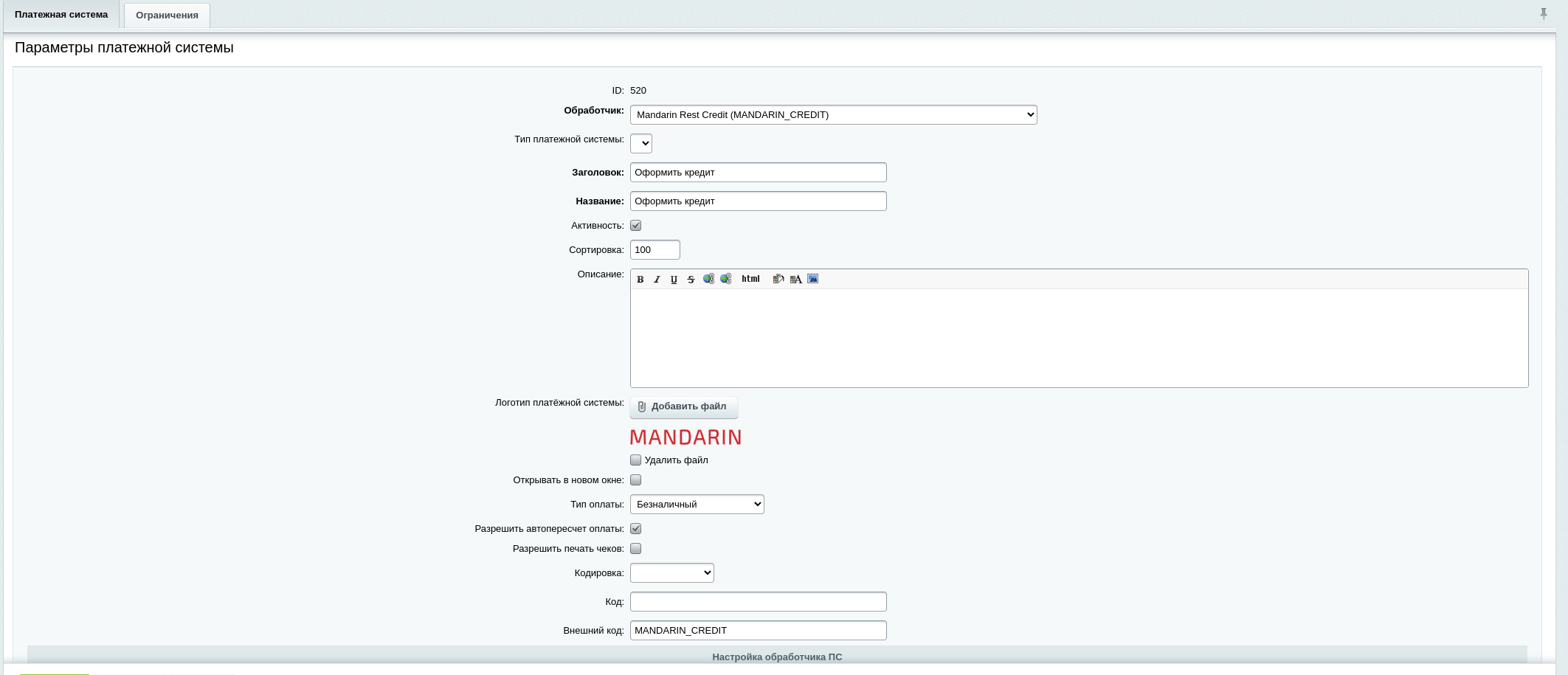
On the "Payment system" tab, fill in the fields as follows:
- Handler: Mandarin Rest Credit (MANDARIN_CREDIT)
- Payment system type: leave empty by default
- Title: Apply for credit
- Name: Apply for credit
- Active: check the box
- Sort order: set as desired
Description:
- Payment system logo: uploaded logo
- Open in new window: leave default
- Payment type: Non-cash
- Allow automatic payment recalculation: leave default
- Allow receipt printing: leave default
- Encoding: leave default
- Code: leave default
- External code: MANDARIN_CREDIT
# Configuring the payment handler for installment credit
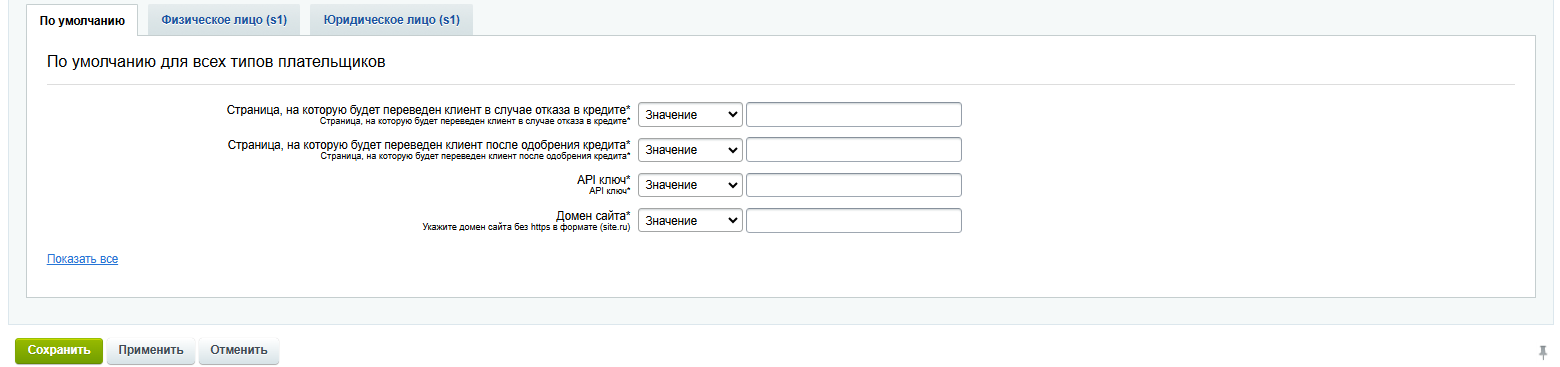
In the "Payment handler settings" section, expand all fields by clicking "Show all". To configure Mandarin, fill in the "Individual (s1)" tab. If a field on the "Individual (s1)" tab has "Default" checked, its value is taken from the corresponding field on the "Default" tab. Otherwise, the value set directly on this tab is used.
API key* (required) — request the value from Support (opens new window)
Site domain* (required) — site domain in the format site.ru without https://
Page after credit approval* (required) — URL where the customer is redirected after successful credit approval; must start with https://
Page after credit decline* (required) — URL where the customer is redirected if credit is declined; must start with https://
Leave the "Payments" section fields at their default values.
# Restrictions
On the "Restrictions" tab for Mandarin (Individual), payer type "Individual" is set automatically.
# Tilda
Before setup, confirm your plan allows HTML code blocks (T123, category “Other”). Some plans do not include this block.
# Before you start
Prepare in advance:
- a Mandarin payment link in the dashboard: payment methods (card, installment, etc.), success and failure redirects, fiscalization (if receipts are required);
- API key — in the same link settings, Integration section;
- payment link ID (
payment_options_id) — UUID from the URL when editing the link in the dashboard, e.g.https://secure-app.mandarin.io/dashboard/invoices/links/2d28e8bf-0d60-45ca-b8b4-172820086117→payment_options_id = 2d28e8bf-0d60-45ca-b8b4-172820086117; - a Tilda page with form fields (email, phone, amount or product quantities).
Configure payment methods, redirects, and fiscalization on the payment link — do not pass them in the script API request. See the link setup guide here (opens new window).
# Method 1. Payment link on a button
Suitable for a fixed amount without on-page calculation.
Step 1. Mandarin link
- Sign in to the dashboard.
- Open Invoices / Links → Create link.
- Enter name, amount, and product or service title.
- Select payment methods, redirects, and fiscalization if needed.
- Create the link and copy the payment URL.
Step 2. Tilda button
- Open your project and page in Tilda.
- Add a button block (e.g. BF101 or BF501).
- In button settings, paste the Mandarin URL into Link.
- Enable open in new tab if needed.
- Save and publish the page.
The customer clicks the button → goes to the Mandarin payment page.
# Method 2. Tilda form + API script
Use when the order total is calculated on the page: multiple products, quantities, or a custom amount.
# Overall flow
Tilda form (visible fields + hidden fields for calculation)
        ↓
HTML block at the bottom of the page (script)
        ↓
POST /api/v1/public/invoices/
        ↓
Redirect to https://secure-app.mandarin.io/payment/{paymentId}
Recommended page structure
| Part | Where in Tilda | Purpose |
|---|---|---|
| Customer fields | Standard form blocks (Zero Block or Form block) | Email, phone, product selection — edit visually |
| Hidden fields | Same blocks, Hidden type / hidden input | totalPrice, quantities, intermediate totals |
| Calculator | Zero Block, Tilda Calculator | Automatically updates hidden fields when quantity changes |
| Script | Separate T123 HTML block at the bottom | Keep the script separate from large form layout |
Step 1. Payment link setup (Mandarin)
- Create or open a payment link in the dashboard.
- Configure payment methods, redirects, fiscalization, and Webhook if needed.
- Copy the API key from Integration.
- Save
payment_options_id(see Before you start).
More on the API: Quick start — unified payment form.
Step 2. Form fields on Tilda
Use the name attribute on input fields — the script finds them by these names.
| name | Required | Description |
|---|---|---|
| Yes | Customer email | |
| phone | Yes | Phone (digits, may include +7) |
| totalPrice | Yes* | Order total in rubles |
| amount | Yes** | Amount entered by the customer (Custom amount scenario only) |
- In the Fixed price scenario, you can set
totalPriceas a hidden field with a fixed value.
** Instead oftotalPricein the Custom amount scenario.
Additional fields (product quantities, line prices) — see the table in the chosen scenario below.
If your fields use different names, map them in the script config fieldMapping block.
Step 3. Pay button
Bind the script to a button using one of the following (choose one):
| Method | How to configure |
|---|---|
| data attribute | On the Zero Block button: data-buttonid="mandarin-pay" |
| id | On the button: id="mandarin-pay-button" |
| class | Button class: mandarin-pay |
Set the same selector in buttonSelector in the script config.
Step 4. HTML block with script
- Add a T123 HTML block at the bottom of the page.
- Paste the script from the chosen scenario (section below).
- At the start of the script, fill in the config:
paymentOptionsId,apiKey, products, andfieldMappingif needed. - Publish the page.
# Order total formula
The value in totalPrice must match the cart items total in the API:
totalPrice = Σ (item_price × quantity)
or for a single line item:
totalPrice = price × quantity = total_price of the line item
Correct calculation is the responsibility of the Tilda form (calculator, hidden fields). Mandarin checks consistency between cart.total_price and items[].total_price.
# Integration scenarios
Choose one scenario and use the corresponding script.
# Scenario A. Fixed price
Example: consultation 5,000 ₽, membership 12,000 ₽.
| name | Type | Value |
|---|---|---|
| input | customer input | |
| phone | input | customer input |
| totalPrice | hidden | fixed amount, e.g. 5000 |
Config (fragment):
const MANDARIN_CONFIG = { paymentOptionsId: 'ВАШ_PAYMENT_OPTIONS_ID', apiKey: 'ВАШ_API_KEY', buttonSelector: '[data-buttonid="mandarin-pay"]', fieldMapping: { email: 'email', phone: 'phone', totalPrice: 'totalPrice' }, products: [ { description: 'Консультация', price: 5000.00, quantity: 1 // фиксированное количество } ], vat: 'None', apiUrl: 'https://secure-app.mandarin.io/api/v1/public/invoices/'};
Script:
<script>(function () {  const CFG = {    paymentOptionsId: 'ВАШ_PAYMENT_OPTIONS_ID',    apiKey: 'ВАШ_API_KEY',    buttonSelector: '[data-buttonid="mandarin-pay"]',    fieldMapping: {      email: 'email',      phone: 'phone',      totalPrice: 'totalPrice'    },    products: [      { description: 'Услуга', price: 5000.00, quantity: 1 }    ],    vat: 'None',    apiUrl: 'https://secure-app.mandarin.io/api/v1/public/invoices/',    paymentPageUrl: 'https://secure-app.mandarin.io/payment/'  };  function getField(name) {    return document.querySelector('[name="' + name + '"]');  }  function readConfigFields() {    const m = CFG.fieldMapping;    const emailEl = getField(m.email);    const phoneEl = getField(m.phone);    const totalEl = getField(m.totalPrice);    if (!emailEl || !phoneEl || !totalEl) {      const missing = [m.email, m.phone, m.totalPrice].filter(function (n) { return !getField(n); });      alert('Не найдены поля формы: ' + missing.join(', '));      return null;    }    const email = emailEl.value.trim();    const phone = phoneEl.value.trim().replace(/\D/g, '');    const totalPrice = parseFloat(totalEl.value) || 0;    if (!email) { alert('Заполните email'); emailEl.focus(); return null; }    if (!phone) { alert('Заполните телефон'); phoneEl.focus(); return null; }    if (totalPrice <= 0) { alert('Некорректная сумма'); return null; }    return { email: email, phone: phone, totalPrice: totalPrice };  }  function buildItems() {    return CFG.products.map(function (p) {      const qty = p.quantity || 1;      const total = p.price * qty;      return {        quantity: qty,        price: p.price,        vat: CFG.vat,        description: p.description,        total_price: total,        calculation_method: 'PREPAY_FULL',        payment_subject: 'SERVICE'      };    });  }  async function createInvoiceAndRedirect() {    const data = readConfigFields();    if (!data) return;    const items = buildItems();    const calcTotal = items.reduce(function (s, i) { return s + i.total_price; }, 0);    if (Math.abs(calcTotal - data.totalPrice) > 0.01) {      alert('Сумма заказа не совпадает с настройками. Проверьте totalPrice на странице.');      return;    }    const orderId = 'Order_' + Date.now();    const body = {      payment_options_id: CFG.paymentOptionsId,      order: { id: orderId, email: data.email, phone: data.phone },      cart: { total_price: data.totalPrice, items: items }    };
    try {      const response = await fetch(CFG.apiUrl, {        method: 'POST',        headers: { 'Content-Type': 'application/json', 'X-Api-Key': CFG.apiKey },        body: JSON.stringify(body)      });      const result = await response.json();      if (!response.ok || !result.success) {        alert('Ошибка создания счёта: ' + (result.message || response.status));        return;      }      window.location.href = CFG.paymentPageUrl + result.paymentId;    } catch (e) {      alert('Ошибка сети. Попробуйте позже или обратитесь в поддержку Mandarin.');    }  }  document.addEventListener('DOMContentLoaded', function () {    const btn = document.querySelector(CFG.buttonSelector);    if (!btn) {      alert('Кнопка оплаты не найдена. Проверьте buttonSelector в конфиге.');      return;    }    btn.addEventListener('click', function (e) {      e.preventDefault();      createInvoiceAndRedirect();    });  });})();</script>
# Scenario B. Multiple products with quantity
Example: regular ticket 900 ₽ and discounted 700 ₽; the customer chooses quantity.
| name | Type | Description |
|---|---|---|
| email, phone | input | contact details |
| totalPrice | hidden | total (updated by Tilda calculator) |
| product1-qty | input / hidden | quantity of first product |
| product2-qty | input / hidden | quantity of second product |
Quantity field names are set in the config (fieldQuantity).
Formula on Tilda: totalPrice = product1-qty × 900 + product2-qty × 700
Configure the Zero Block calculator so the hidden totalPrice field updates when quantity changes.
Config (fragment):
products: [ { description: 'Обычный билет', price: 900.00, fieldQuantity: 'product1-qty' }, { description: 'Льготный билет', price: 700.00, fieldQuantity: 'product2-qty' }]
Script:
<script>(function () { const CFG = { paymentOptionsId: 'ВАШ_PAYMENT_OPTIONS_ID', apiKey: 'ВАШ_API_KEY', buttonSelector: '[data-buttonid="mandarin-pay"]', fieldMapping: { email: 'email', phone: 'phone', totalPrice: 'totalPrice' }, products: [ { description: 'Товар 1', price: 900.00, fieldQuantity: 'product1-qty' }, { description: 'Товар 2', price: 700.00, fieldQuantity: 'product2-qty' } ], vat: 'None', apiUrl: 'https://secure-app.mandarin.io/api/v1/public/invoices/', paymentPageUrl: 'https://secure-app.mandarin.io/payment/' }; function getField(name) { return document.querySelector('[name="' + name + '"]'); } function readConfigFields() { const m = CFG.fieldMapping; const emailEl = getField(m.email); const phoneEl = getField(m.phone); const totalEl = getField(m.totalPrice); if (!emailEl || !phoneEl || !totalEl) { alert('Не найдены обязательные поля формы.'); return null; } const email = emailEl.value.trim(); const phone = phoneEl.value.trim().replace(/\D/g, ''); const totalPrice = parseFloat(totalEl.value) || 0; if (!email) { alert('Заполните email'); return null; } if (!phone) { alert('Заполните телефон'); return null; } if (totalPrice <= 0) { alert('Выберите товар или количество'); return null; } return { email: email, phone: phone, totalPrice: totalPrice }; } function buildItems() { const items = []; CFG.products.forEach(function (p) { const qtyEl = getField(p.fieldQuantity); const qty = qtyEl ? (parseInt(qtyEl.value, 10) || 0) : 0; if (qty <= 0) return; items.push({ quantity: qty, price: p.price, vat: CFG.vat, description: p.description, total_price: p.price * qty, calculation_method: 'PREPAY_FULL', payment_subject: 'SERVICE' }); }); if (items.length === 0) { alert('Выберите хотя бы одну позицию'); return null; } return items; } async function createInvoiceAndRedirect() { const data = readConfigFields(); if (!data) return; const items = buildItems(); if (!items) return; const calcTotal = items.reduce(function (s, i) { return s + i.total_price; }, 0); if (Math.abs(calcTotal - data.totalPrice) > 0.01) { alert('Итоговая сумма на форме не совпадает с корзиной. Проверьте калькулятор Tilda.'); return; } const orderId = 'Order_' + Date.now(); const body = { payment_options_id: CFG.paymentOptionsId, order: { id: orderId, email: data.email, phone: data.phone }, cart: { total_price: data.totalPrice, items: items } }; try { const response = await fetch(CFG.apiUrl, { method: 'POST', headers: { 'Content-Type': 'application/json', 'X-Api-Key': CFG.apiKey }, body: JSON.stringify(body) }); const result = await response.json(); if (!response.ok || !result.success) { alert('Ошибка создания счёта: ' + (result.message || response.status)); return; } window.location.href = CFG.paymentPageUrl + result.paymentId; } catch (e) { alert('Ошибка сети. Обратитесь в поддержку Mandarin.'); } } document.addEventListener('DOMContentLoaded', function () { const btn = document.querySelector(CFG.buttonSelector); if (!btn) { alert('Кнопка оплаты не найдена'); return; } btn.addEventListener('click', function (e) { e.preventDefault(); createInvoiceAndRedirect(); }); });})();</script>
# Scenario C. Customer enters the amount
Example: donation, pay any amount.
| name | Type | Description |
|---|---|---|
| email, phone | input | contact details |
| amount | input number | amount from customer |
Config (fragment):
fieldMapping: { email: 'email', phone: 'phone', amount: 'amount'},productDescription: 'Оплата'
Script:
<script>(function () { const CFG = { paymentOptionsId: 'ВАШ_PAYMENT_OPTIONS_ID', apiKey: 'ВАШ_API_KEY', buttonSelector: '.mandarin-pay', fieldMapping: { email: 'email', phone: 'phone', amount: 'amount' }, productDescription: 'Оплата', vat: 'None', apiUrl: 'https://secure-app.mandarin.io/api/v1/public/invoices/', paymentPageUrl: 'https://secure-app.mandarin.io/payment/' }; function getField(name) { return document.querySelector('[name="' + name + '"]'); } async function createInvoiceAndRedirect() { const m = CFG.fieldMapping; const emailEl = getField(m.email); const phoneEl = getField(m.phone); const amountEl = getField(m.amount); if (!emailEl || !phoneEl || !amountEl) { alert('Не найдены поля формы.'); return; } const email = emailEl.value.trim(); const phone = phoneEl.value.trim().replace(/\D/g, ''); const amount = parseFloat(amountEl.value) || 0; if (!email) { alert('Заполните email'); return; } if (!phone) { alert('Заполните телефон'); return; } if (amount <= 0) { alert('Укажите сумму'); return; } const items = [{ quantity: 1, price: amount, vat: CFG.vat, description: CFG.productDescription, total_price: amount, calculation_method: 'PREPAY_FULL', payment_subject: 'SERVICE' }]; const orderId = 'Order_' + Date.now(); const body = { payment_options_id: CFG.paymentOptionsId, order: { id: orderId, email: email, phone: phone }, cart: { total_price: amount, items: items } }; try { const response = await fetch(CFG.apiUrl, { method: 'POST', headers: { 'Content-Type': 'application/json', 'X-Api-Key': CFG.apiKey }, body: JSON.stringify(body) }); const result = await response.json(); if (!response.ok || !result.success) { alert('Ошибка создания счёта: ' + (result.message || response.status)); return; } window.location.href = CFG.paymentPageUrl + result.paymentId; } catch (e) { alert('Ошибка сети. Обратитесь в поддержку Mandarin.'); } } document.addEventListener('DOMContentLoaded', function () { const btn = document.querySelector(CFG.buttonSelector); if (!btn) { alert('Кнопка оплаты не найдена'); return; } btn.addEventListener('click', function (e) { e.preventDefault(); createInvoiceAndRedirect(); }); });})();</script>
# After payment
Check operation status in the Mandarin dashboard. Enable email notifications in account settings if needed.
# Insales
Obtain authorization credentials in the Mandarin system.
Next, in Insales add a new payment method: "External payment method".
In the menu that appears, enter:
MerchantIDas the store identifier.Secretas the password.http://pay.mandarin.io/mandarin_proxy.phpas the external URL.
You can find MerchantID and Secret in the dashboard.
Then open the dashboard (opens new window) and set Callback url to the "URL for redirect after successful payment" value from Insales.
Detailed instructions are in the archive (opens new window).
# ReadyScript
ReadyScript is a specialized commercial CMS and ready-made e-commerce platform for creating, launching, and managing online stores and omnichannel retail.
Install the plugin from: https://marketplace.readyscript.ru/addons/paymentmandarin/ (opens new window)
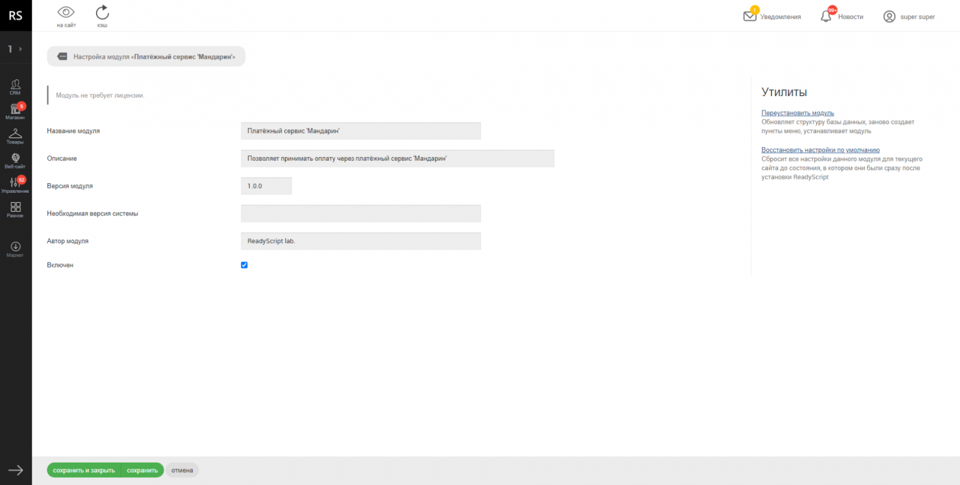
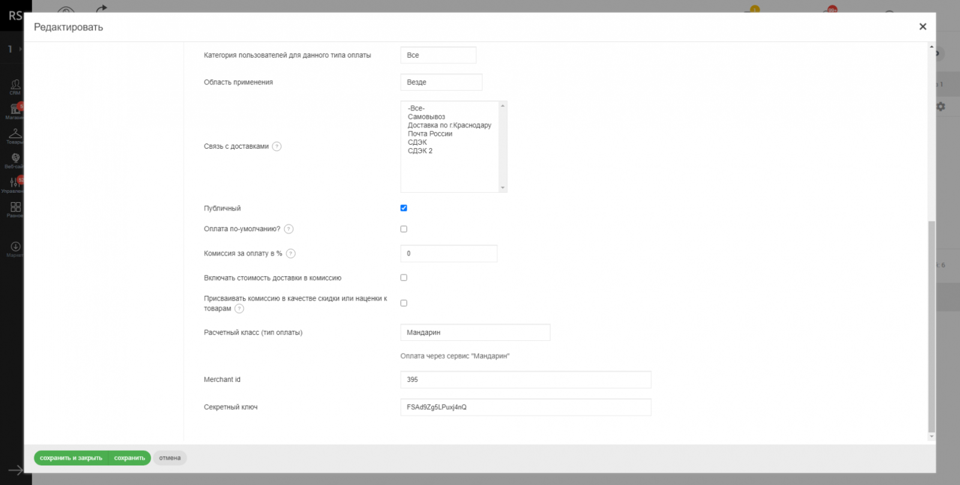
After installation, the Mandarin payment class appears for single-stage online payments in the store.
# Wordpress
# CS-CART
# Magento
# PHP Shop
# Prestashop
# Transport and logistics
# Jump Taxi
Mandarin provides instant, secure payouts to drivers on the Jump.Taxi platform. API integration automatically transfers earned funds to bank cards right after a trip ends, improving driver loyalty and optimizing the taxi fleet’s financial processes.
# Pawnshops
# Smart Lombard
SmartLombard is a specialized cloud program and online service for automating pawnshops, consignment stores, and retail and repair businesses.
Key features
- Collateral and loan accounting: pledge agreements, interest calculation, and property valuation.
- Sales management: inventory in consignment stores and retail.
- Valuation: hints for estimating market value of accepted items and equipment.
- Remote control: access via the internet from a computer, tablet, or smartphone.
After successful registration in the Mandarin dashboard, open an account with a partner bank for payouts: legal payouts (opens new window).
After the partner bank account is opened, add it under Management → Settings → Bank details.
Go to Management → Integrations → Card operations → Integration. Click Add, select the legal entity and settlement account for operations. In card operations, choose whether to use the payment system only for online interest payments, only for card payouts, or both. Indicate whether you use a cloud cash register. Then enter the MerchantID and Secret assigned during payment system registration.
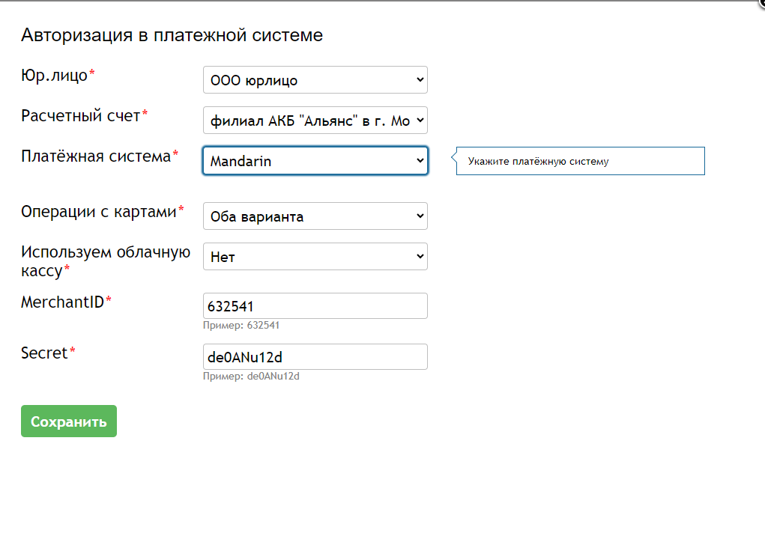
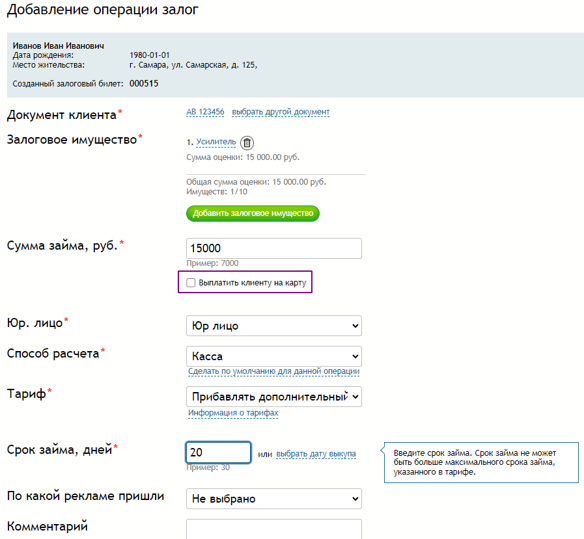
If integration is configured correctly and the employee can perform operations on the settlement account, a Pay out to customer card checkbox appears when adding operations (pledge, top-up, purchase, settlement with customer / sale). After checking the box, confirm the payout settlement account is correct.
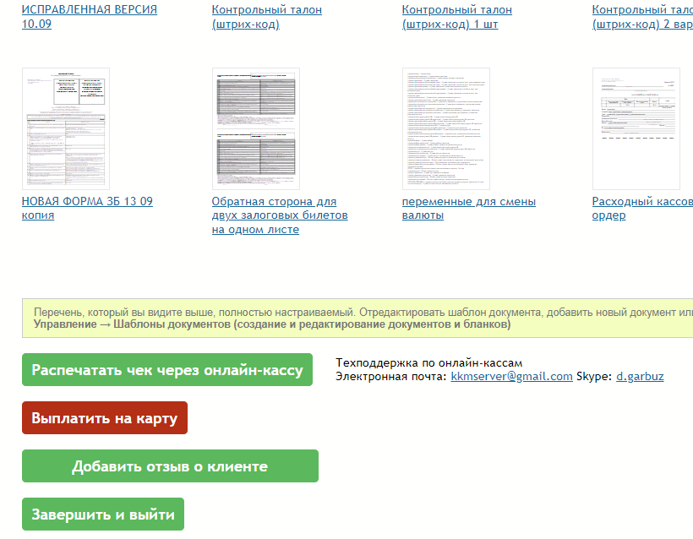
If the checkbox is set, the document print page shows a Pay out to card button.
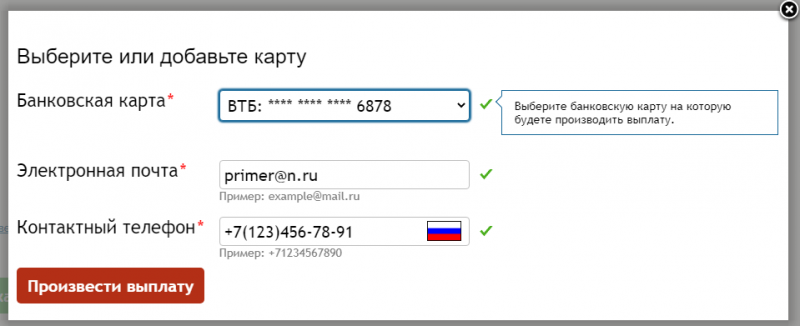
Clicking the button opens a dialog to select, change, or add the customer’s bank card, email, and phone number.
If the transaction succeeded, the Pay out to card button becomes inactive.
# Lombardis
Lombardis is a cloud service for pawnshop automation covering the full cycle from secured loan issuance to sale of unclaimed property, including cash operations, customer interaction, and reporting.
Lombardis runs in a browser or 1C:Enterprise thin client without local installation. Application creation and access management are done in the Service Manager.
When you sign in, you land on the home page.
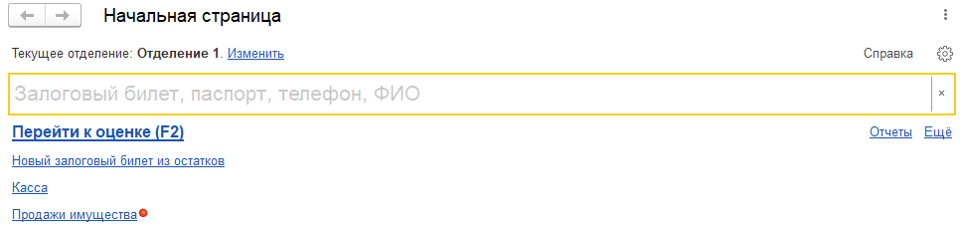
For quick setup, go to Parameters on the home page.
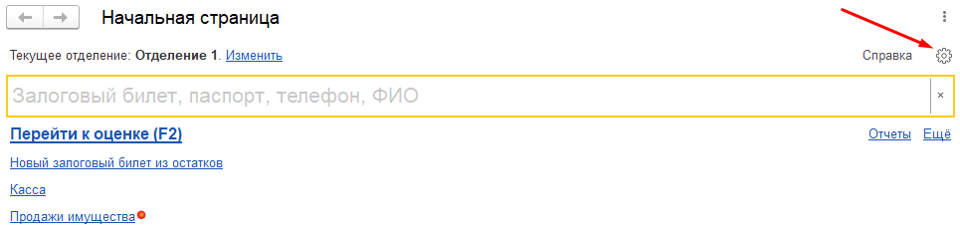
The Card payout setup link lets you enable card payouts via your pawnshop service; click Enable automatic card payouts to complete the application for Mandarin card loan disbursement.
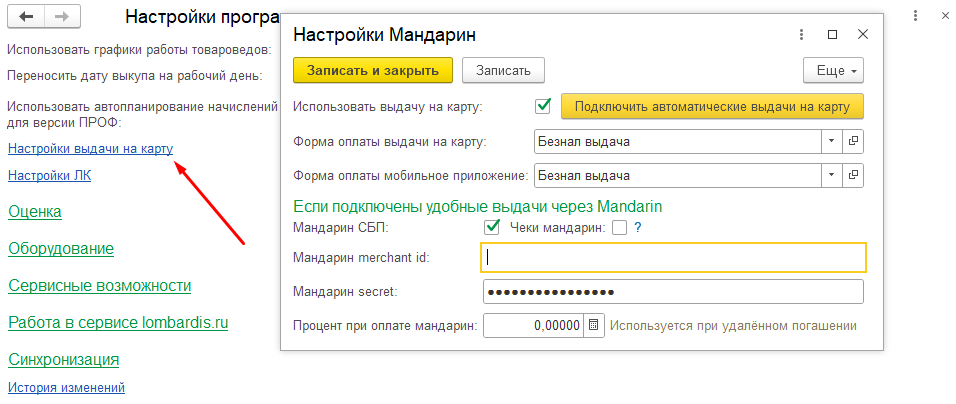
When the flag is set, create payment forms for card payout and mobile app payment (e.g. "Mandarin Acquiring" and "Mobile app" or any convenient names). When creating payment forms, set the form type and payment type Non-cash. For Mandarin, fill in Mandarin merchant id, Mandarin secret, and set the Mandarin payment fee. To enable SBP payouts via Mandarin, check Mandarin SBP. After setting the flag(s), restart the service.
# YuvelirSoft
# Finance
# First BIT
# BIT.Accounts Receivable Management
In the First BIT debt collection CRM "BIT.Accounts Receivable Management", you can enable functionality that improves payment conversion on individual debt obligations.
Request a demo of the integration here (opens new window)
The Mandarin and "BIT.Accounts Receivable Management" integration enables:
- Receive and record payment information online;
- Enable autopay on the debtor’s card with the highest conversion;
- Send a direct debt payment link by email or SMS;
- Configure automatic card charges on a payment schedule.
The operator agrees on the amount the debtor is ready to pay, then sends a message with a link to the payment form. The payment is reflected instantly in "BIT.Accounts Receivable Management". Autopay on the debtor’s card speeds up collection and reduces SMS, email, and call costs.
Integration from request to go-live takes 1–3 business days and depends on how quickly data is provided.
# What to configure before integration:
- Live Mandarin account;
- BIT.Accounts Receivable Management software.
For setup, contact a First BIT implementation specialist or your account manager.
Self-service setup is also possible; see the First BIT guide here (opens new window).
# 1C Plugin
# Module upload instructions
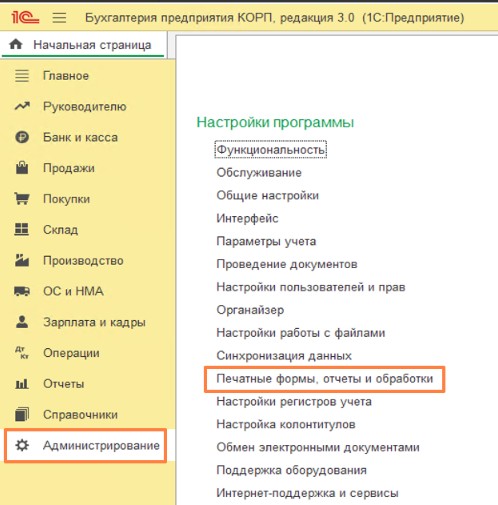
Upload the extension to the client database: go to "Administration" — "Print forms, reports, and data processors".
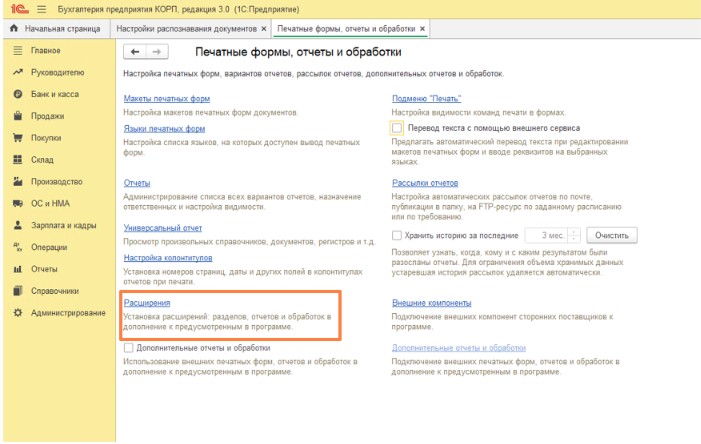
Then open "Extensions"
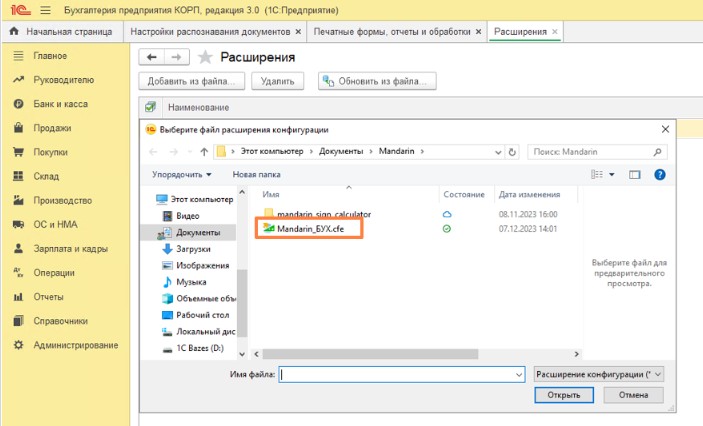
In the window that opens, click "Add from file", select the file path, and click "Open".
Important!
Everyone must log out of the database before loading the extension!
An extension apply dialog appears next.
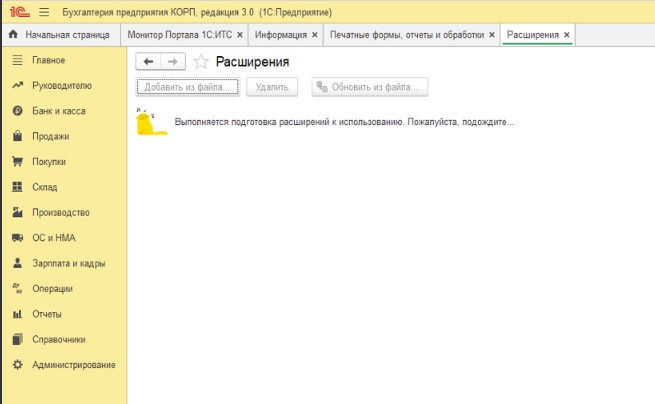
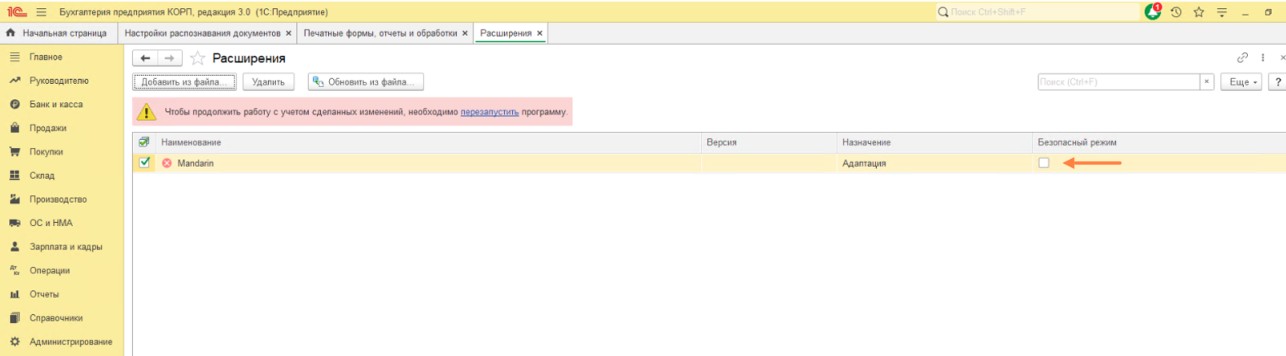
After successful application, a message prompts you to restart the program in the database.
Important!
UNCHECK "Safe mode"!
After successful addition and restart, Mandarin appears.
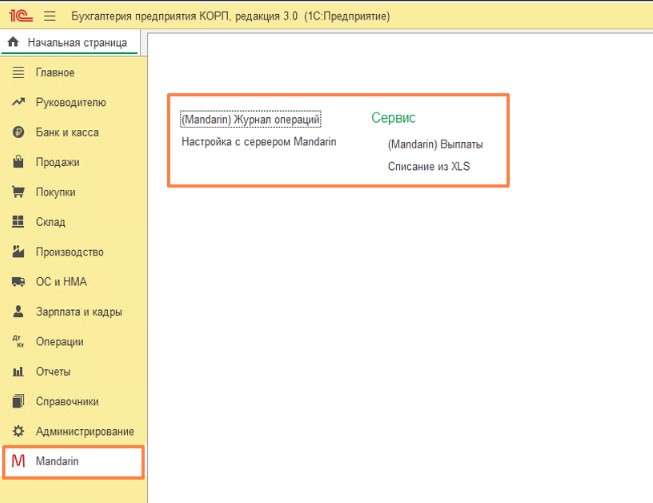
# Adding store settings in 1C
After adding the extension, configure the module. Open the "Mandarin" subsystem — Mandarin server settings.
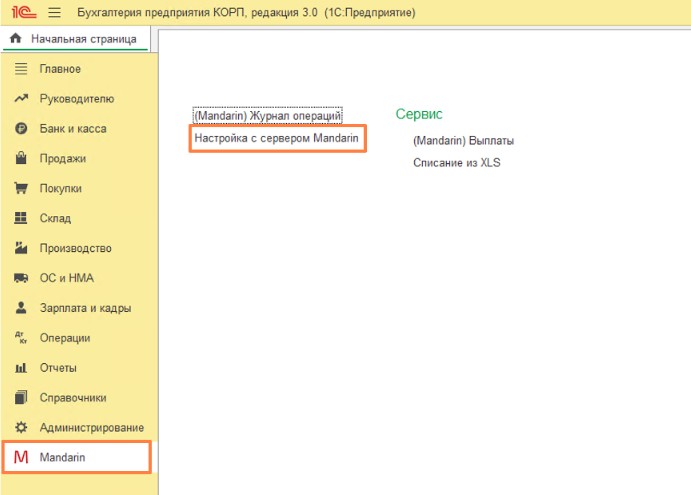
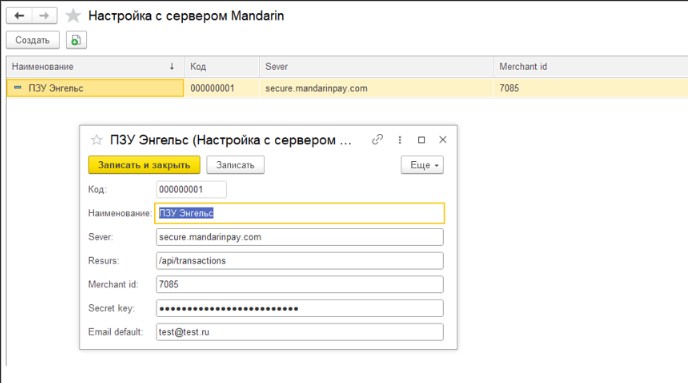
Create a new project configuration. Ideally, one configuration per site.
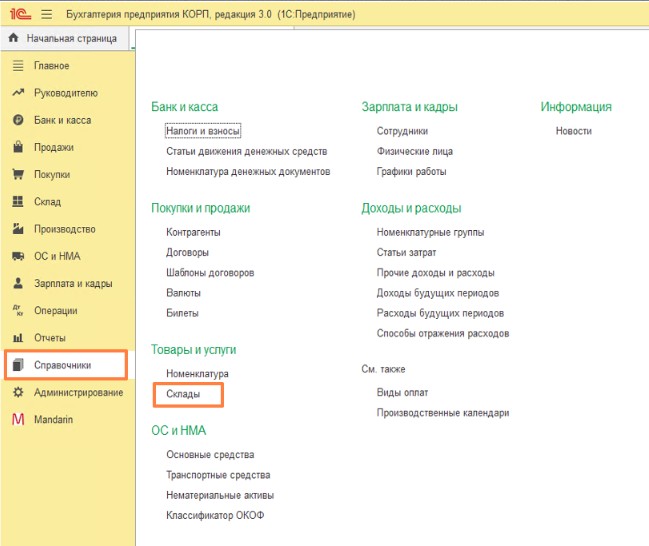
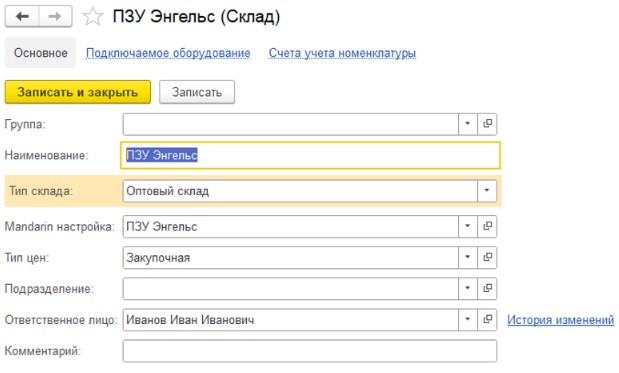
If you have many sites, assign the configuration to a specific warehouse for convenience. Go to "Catalog" — "Warehouses" and open the required warehouse.
Select the configuration in the warehouse
Then try a payout from 1C to an individual’s card number. Go to "Purchases" — "Receipt (acts, invoices, UTD)".
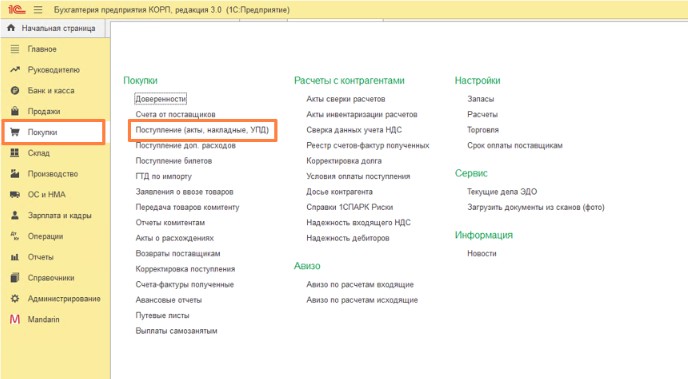
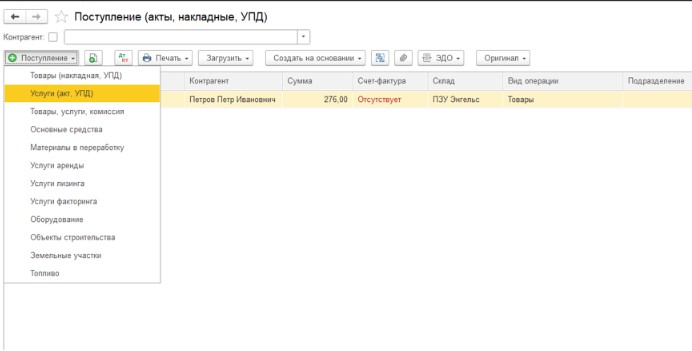
Create a new document.
Important!
The card payout button is available for goods only!
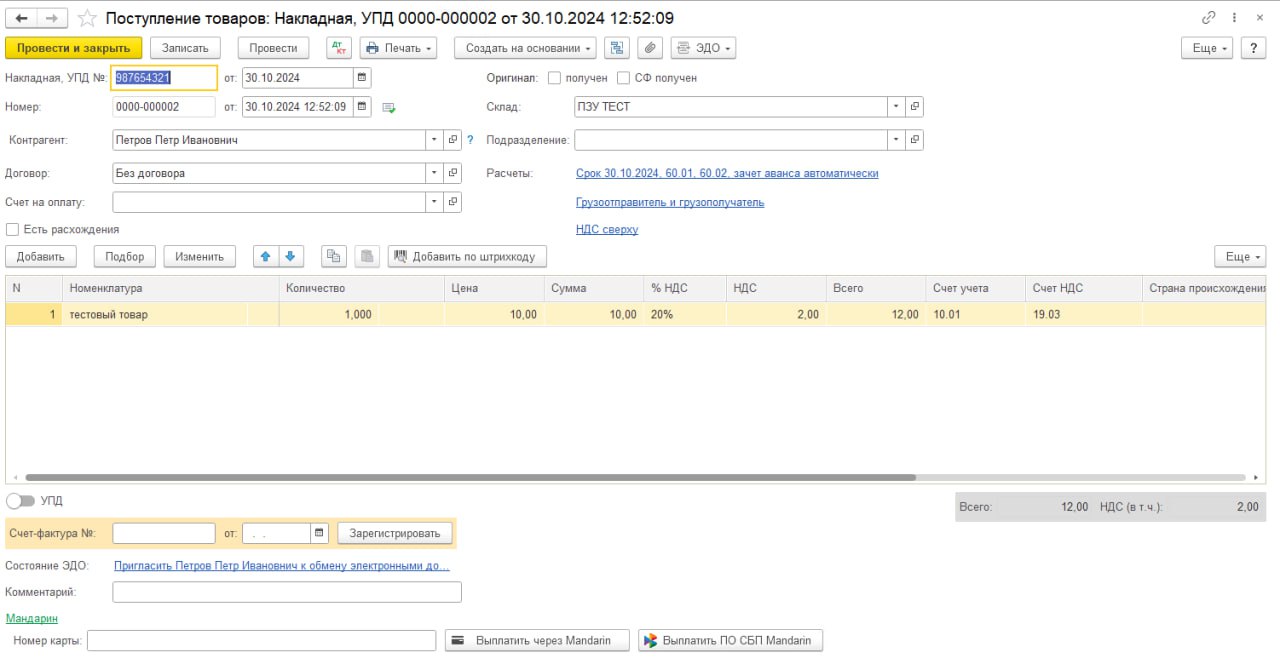
Fill in the required fields and click "Pay out via Mandarin" or "Pay out via SBP Mandarin".
- "Pay out via Mandarin" — payout by card number.
- "Pay out via SBP Mandarin" — payout by phone number via the Faster Payments System; the operator enters the recipient’s phone, selects the recipient’s bank from the list, and confirms.
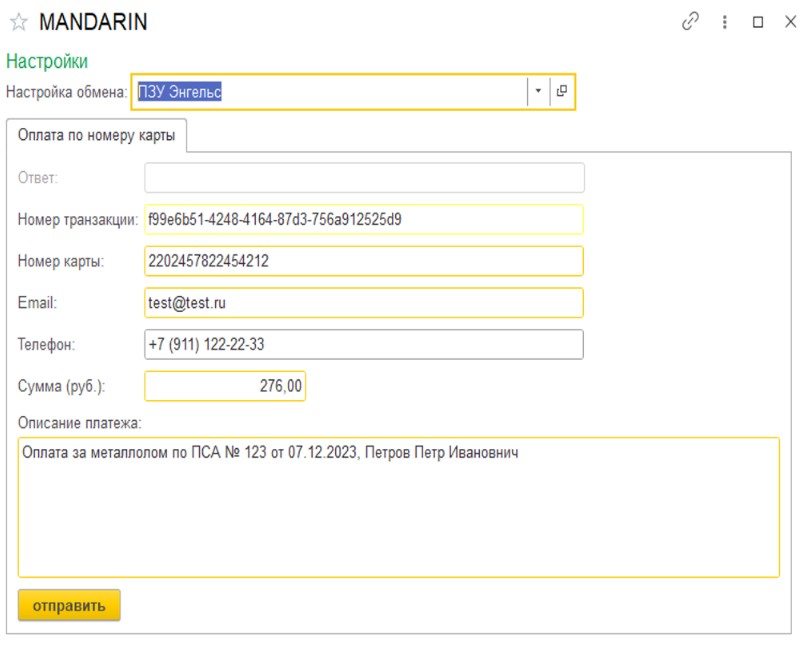
The Mandarin payout window opens.
Important!
For maximum field prefill, verify exchange settings, warehouse, and counterparty fields are complete!
Successful and failed operations are logged in the operations journal.
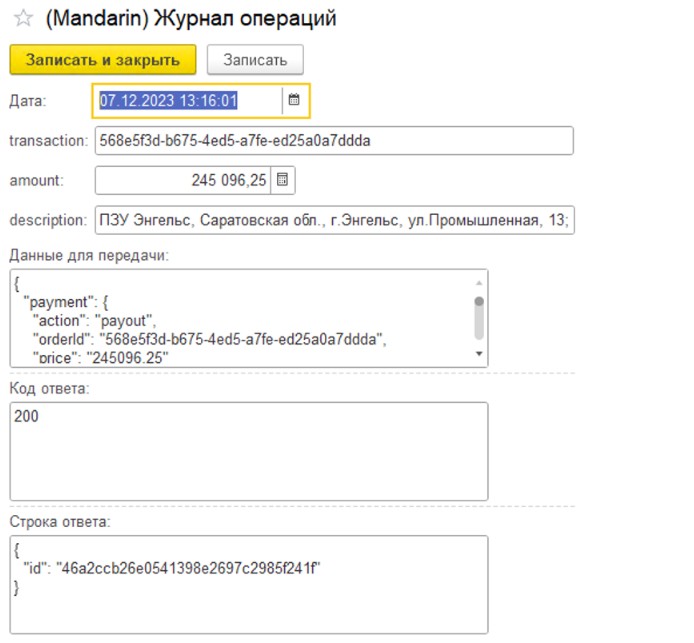
Find it under "Mandarin" — "Operations journal"
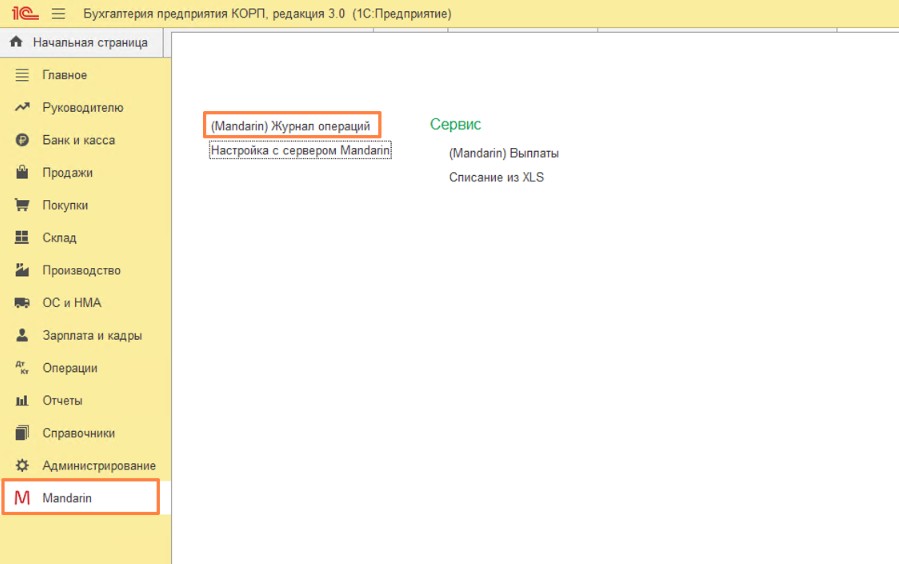
# Importing statements from MANDARIN
After adding the extension, "Bank and cash" — "Bank statements" shows a "Import from Mandarin" button
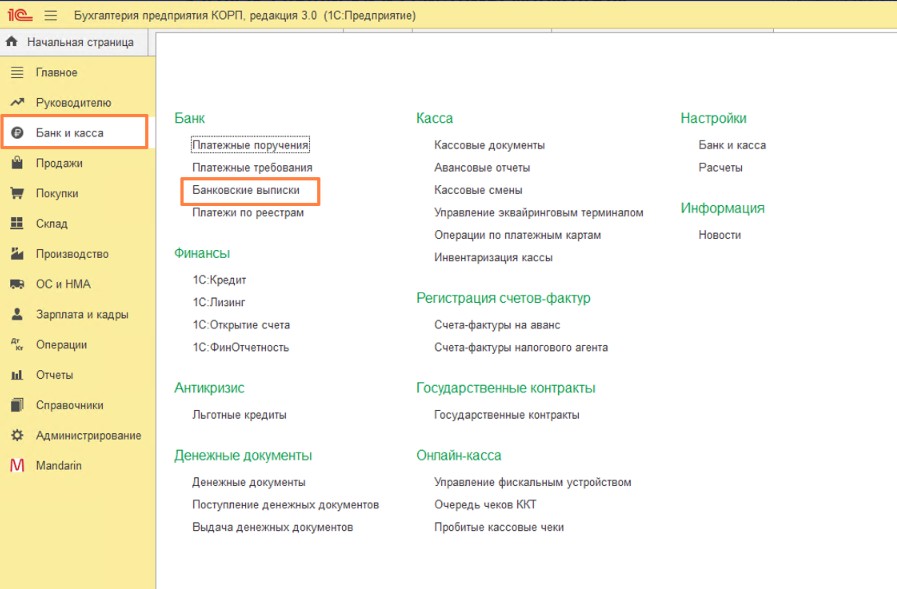
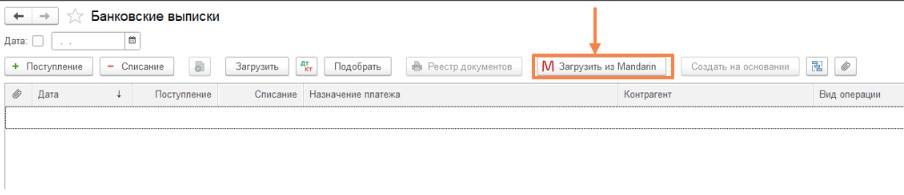
Clicking it opens a form:
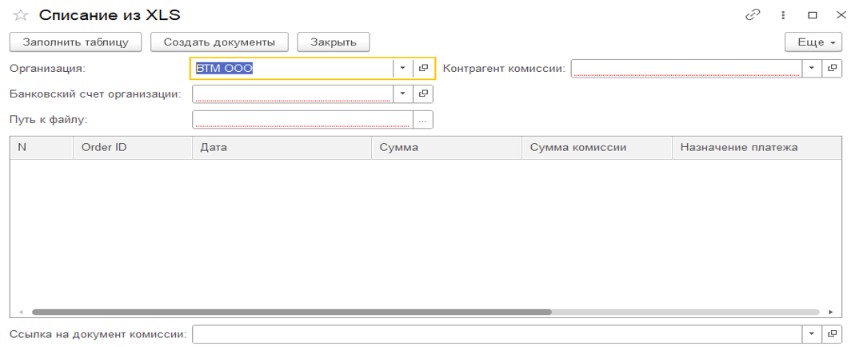
Specify organization, bank account, commission counterparty, and path to the file downloaded from Mandarin, then click "Fill table".
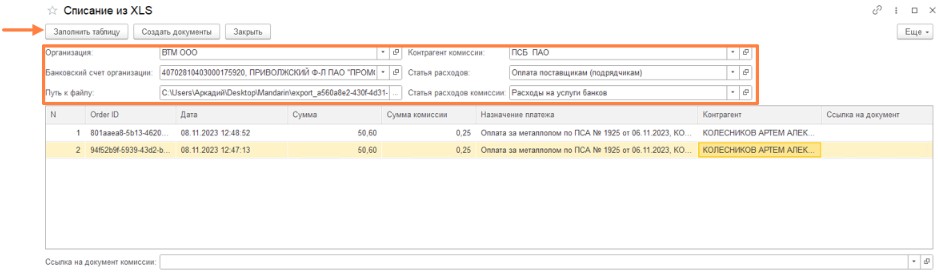
Click "Create documents" to generate bank account debit documents and a combined commission document for these operations.
# SaaS Credit
SaaS Credit is an online solution for full automation of microfinance organizations. The service is hosted on a cloud server. It is lightweight and runs on all modern operating systems.
The service speeds up online card loan disbursement and cash payouts via cash orders. It also improves operator, cashier, underwriter, and collector workflows. It includes extensive reports and integrations with other systems.
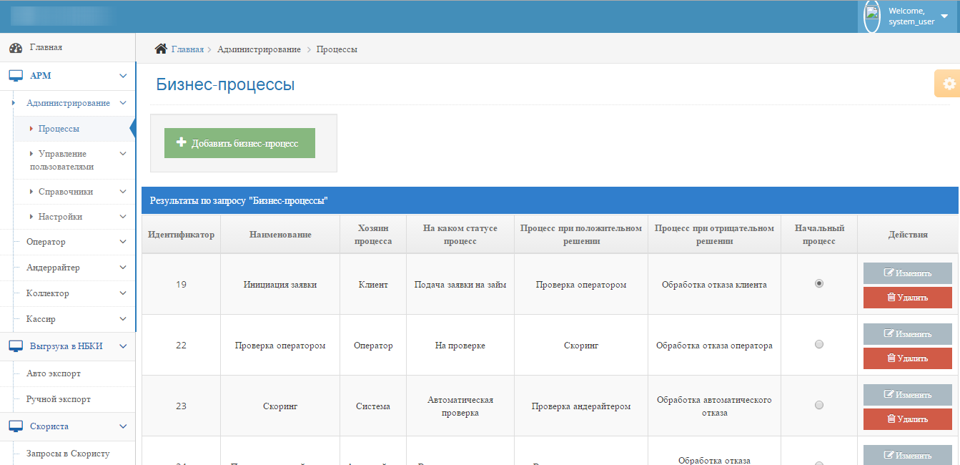
Mandarin integration is configured together with the integrator when you purchase the solution.
# Brainysoft
Brainysoft for MFOs is financial software that acts as a credit pipeline: loan and installment origination and accounting.
It supports accounting and automation for banks and microfinance organizations: MFOs, MKKs, MFKs, cooperatives, leasing companies, non-profit funds, pawnshops, marketplaces, and other lenders offering credit, loans, and installments.
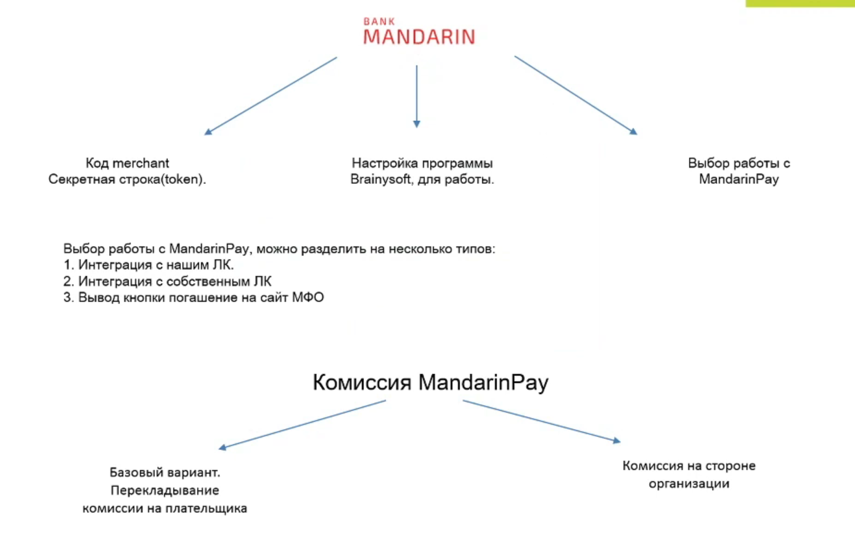
Mandarin integration is configured together with the integrator when you purchase the solution.
# My MFO
"My MFO" is specialized software for accounting, operations, and management in microfinance organizations (MFOs) and credit consumer cooperatives (CCCs).
Built on the "1C:Enterprise Accounting" platform, it helps companies run their business.
The integration supports card and SBP loan disbursement and identification of full name, passport number and series, SNILS, and INN of the counterparty/borrower for loan decisions and contract signing.
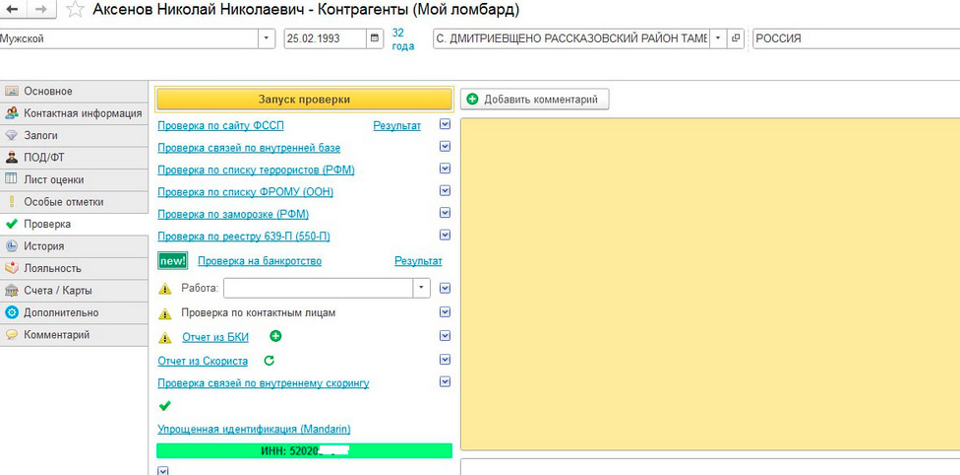
Mandarin integration is configured together with the integrator when you purchase the solution.
# Other integrations
See all ready-made integration solutions on the Mandarin website (opens new window).
# RadicalMart
RadicalMart is a solution for building and running an online store or sales landing page for different needs.
A payment plugin that integrates Mandarin into e-commerce projects on RadicalMart:
- plugin page (opens new window);
- help with setup (opens new window).
Learn more about the RadicalMart online store platform on the official website (opens new window).
# Diafan CMS
# Joomla
- NEW! plugin for Joomla JoomFunding (opens new window)
- Plugin for Joomla3 JoomShopping4 (opens new window)
- Plugin for Joomla2.5 JoomShopping3 (opens new window)
- Old plugin version for VirtueMart (opens new window)
# Simpla
# UMI.CMS
# Webasyst
← Quick start Payments →